

SpeedCrunch is a program that aims to be a high-precision scientific calculator, with a simple but highly customizable interface.
Where to find it, license, and platforms #
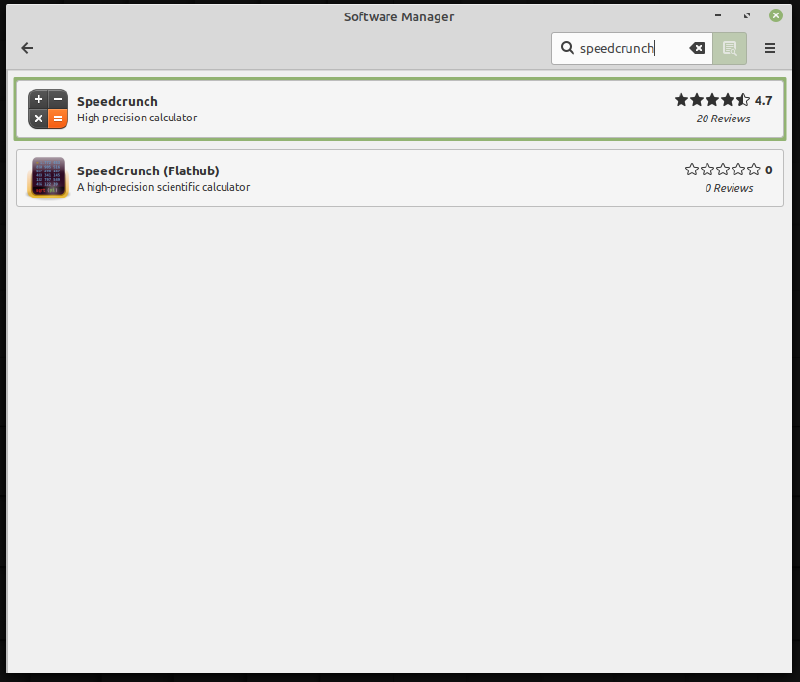
The program can be downloaded directly from the project website, with versions for Linux, Windows, and MacOS. Users of Linux distributions can also check whether the calculator is available in the distribution’s app store and/or repository, which is the procedure recommended by the project’s own website. For example, users of Linux Mint, the distribution I use and recommend, can download it from the app store by searching for “speedcrunch”, as in the figure below:
In general, users of Debian-based distributions can install it from the terminal if they have no app store:
sudo apt install speedcrunchAnd on Fedora:
sudo yum install speedcrunchThe license is GPL and it is a free FOSS program: free and open source.
Overview and features #
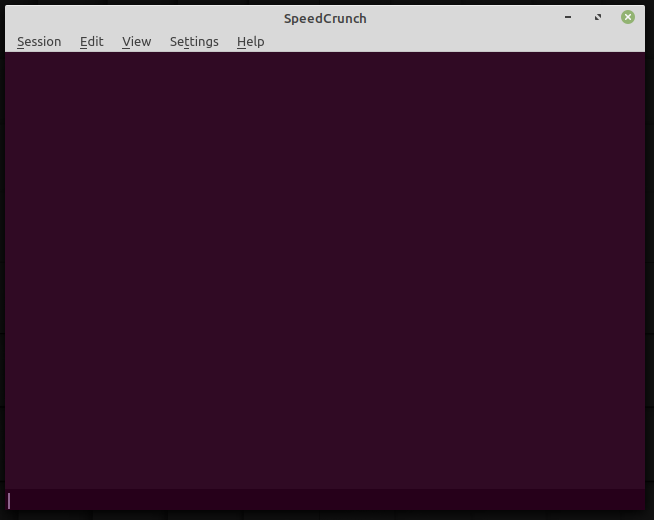
The initial view of the calculator is quite simple: a text input on the last line and an empty space where a history of the latest calculations and their results will be displayed.
The figure below shows this screen:
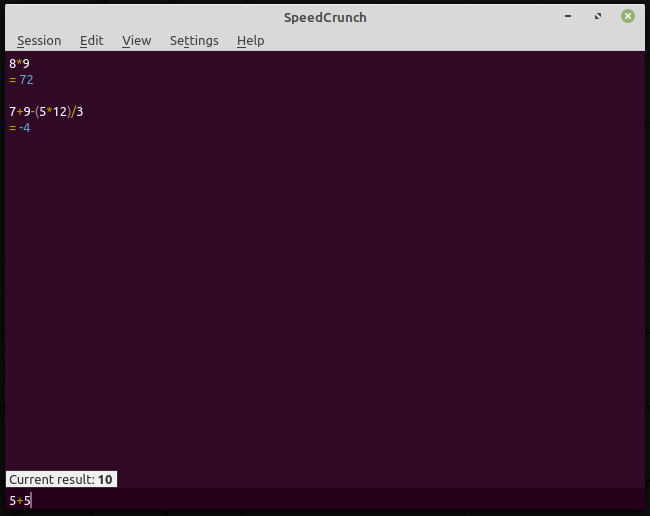
Just type in the operations and press enter for the results to be displayed. Before pressing enter, partial results are displayed above the input bar.
In the figure, two calculations already done and a third one being typed:
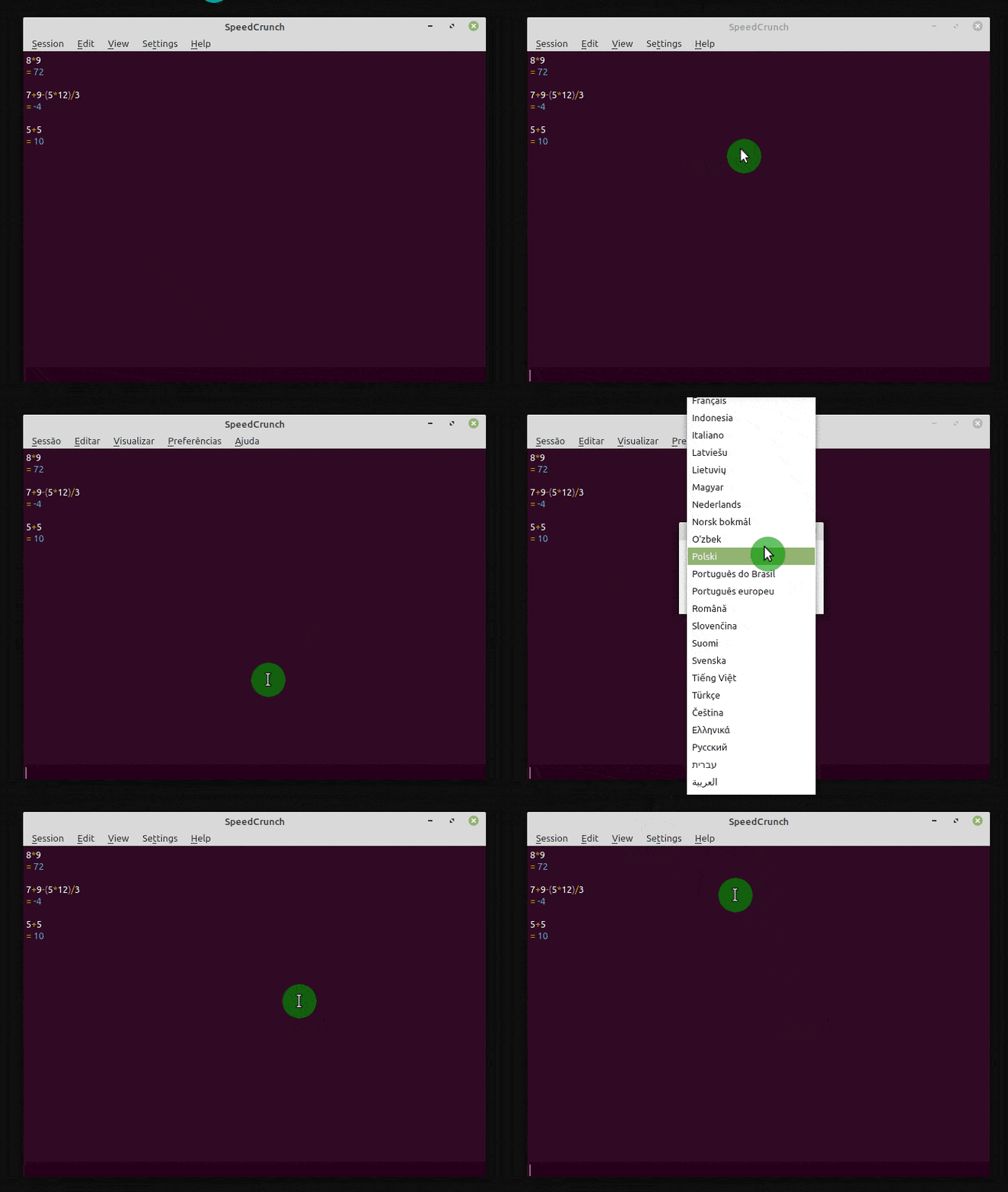
The interface is available in several languages, in the menu Settings -> Language…; here we will keep it in English.
The menu looks like this:
Let’s face it, the color scheme and the initial screen are not very inviting. I will start by changing the calculator’s theme and increasing the font size a bit. Follow the steps in the animation below and feel free to select another theme and another font:
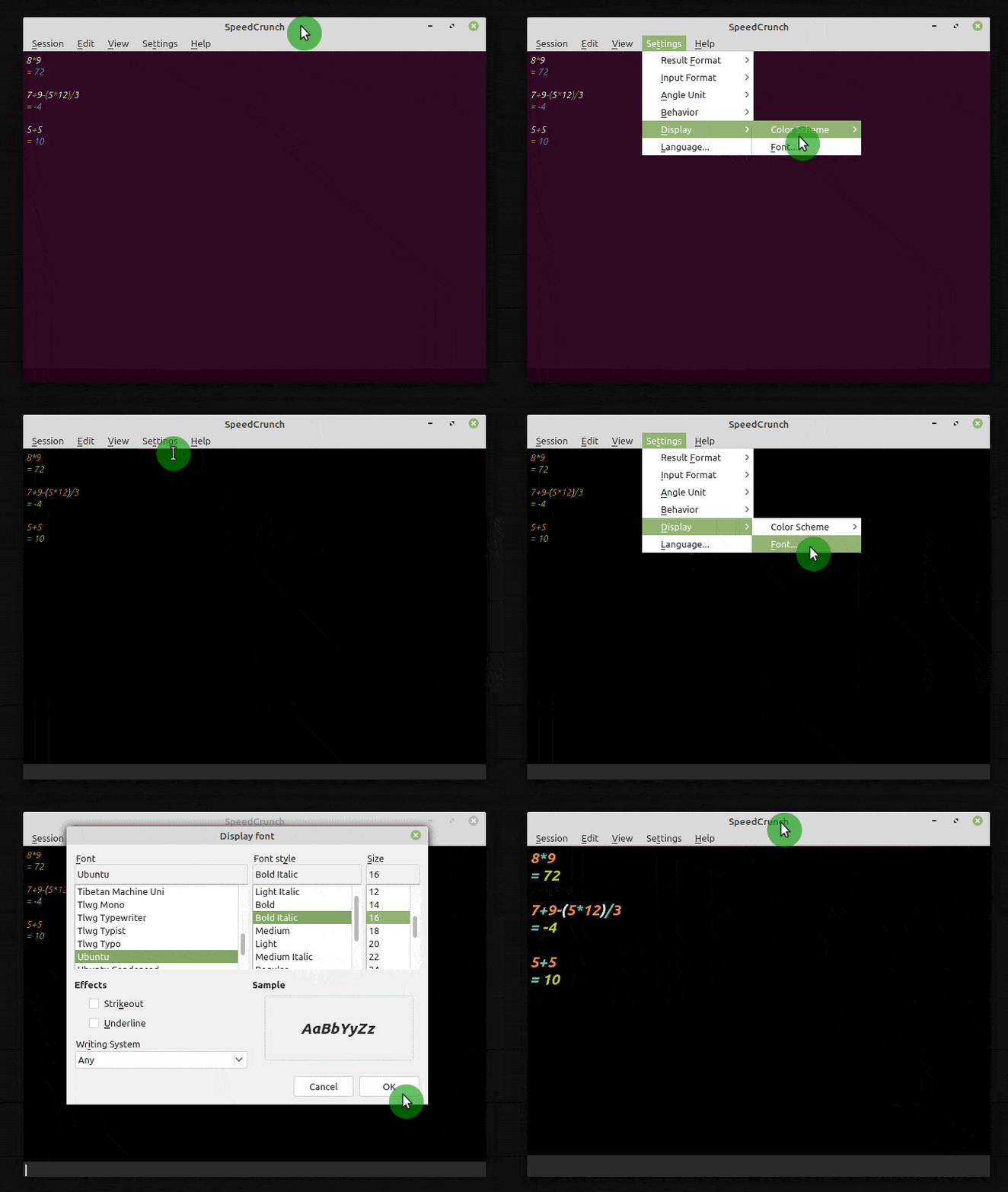
Now it is easier to see what we are doing.
As usual in calculators and spreadsheets on computers, the basic operations are
entered with the keys +, -, *, and /.
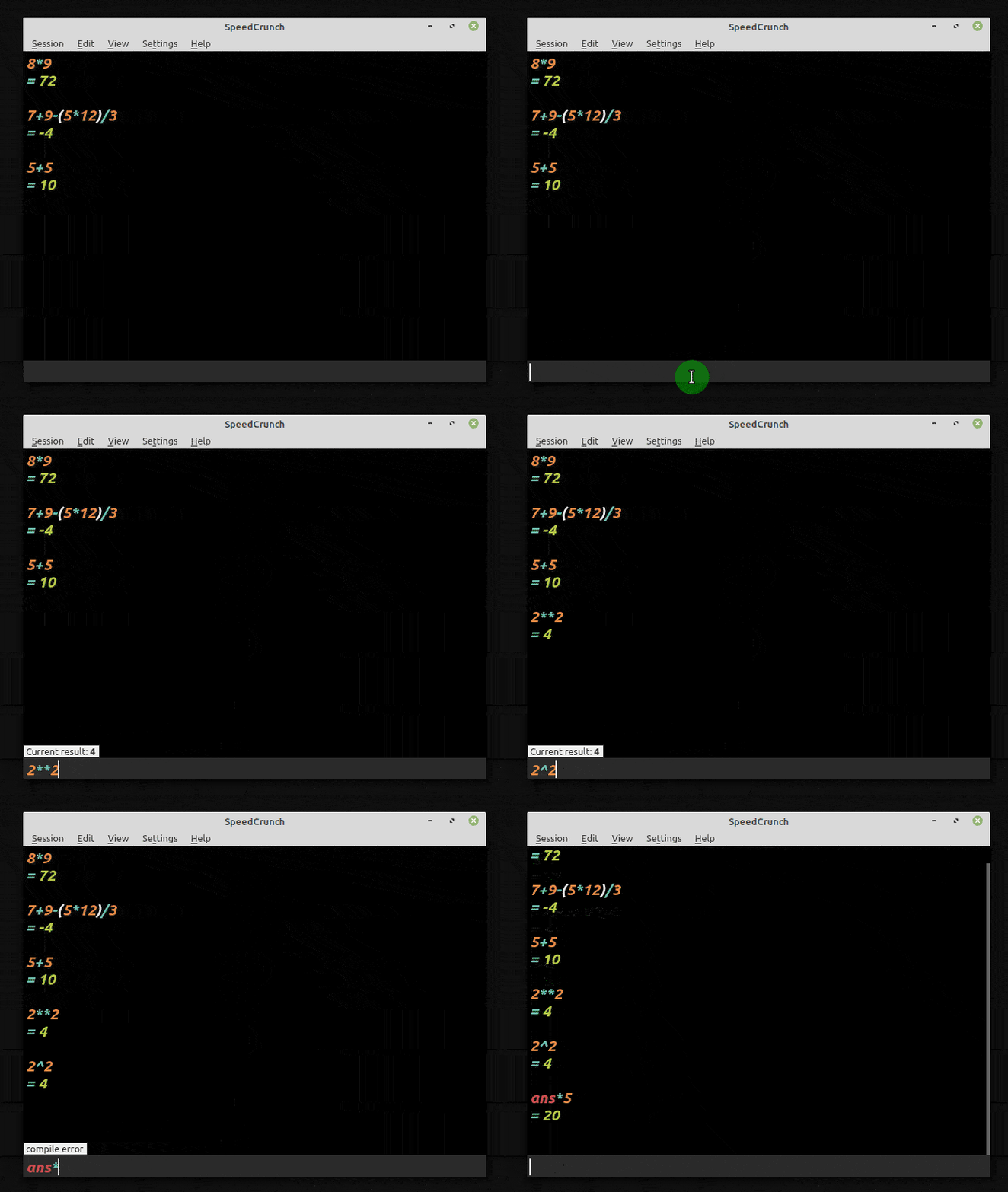
Powers can be written with two asterisks or with the caret sign. And, like
most calculators nowadays, the result of the last operation is stored in a
variable called ans, which can be recalled simply by typing its name. Follow
the animation:
A large collection of scientific constants #
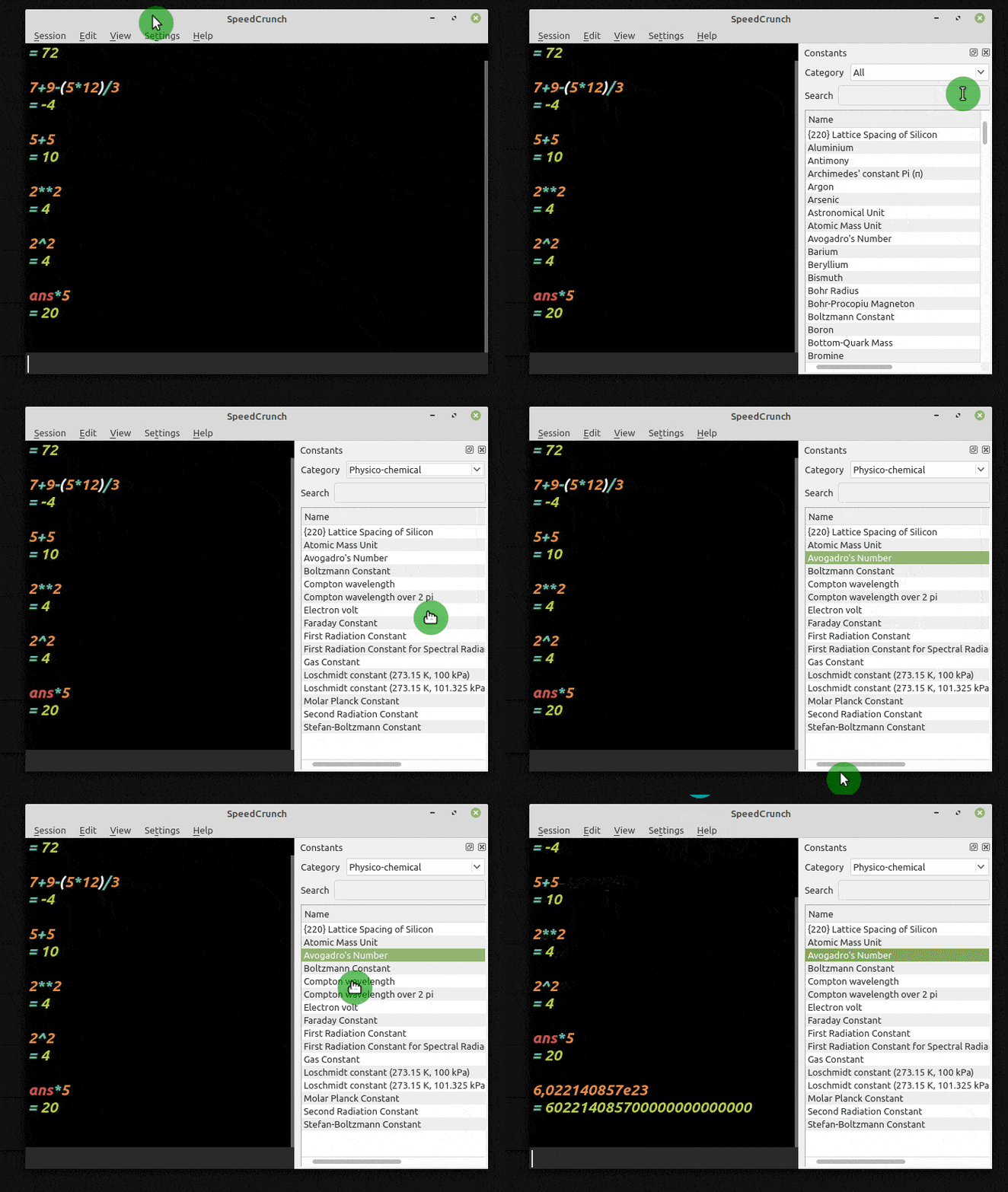
Now let’s move on to the areas where the calculator stands out. There are more than 100 scientific constants built into the program, with the correct number of significant figures and with the default values for International System of Units (SI). You can enable a menu that displays all the constants, grouped by category, and double-click to select one. Let’s select the Avogadro constant:
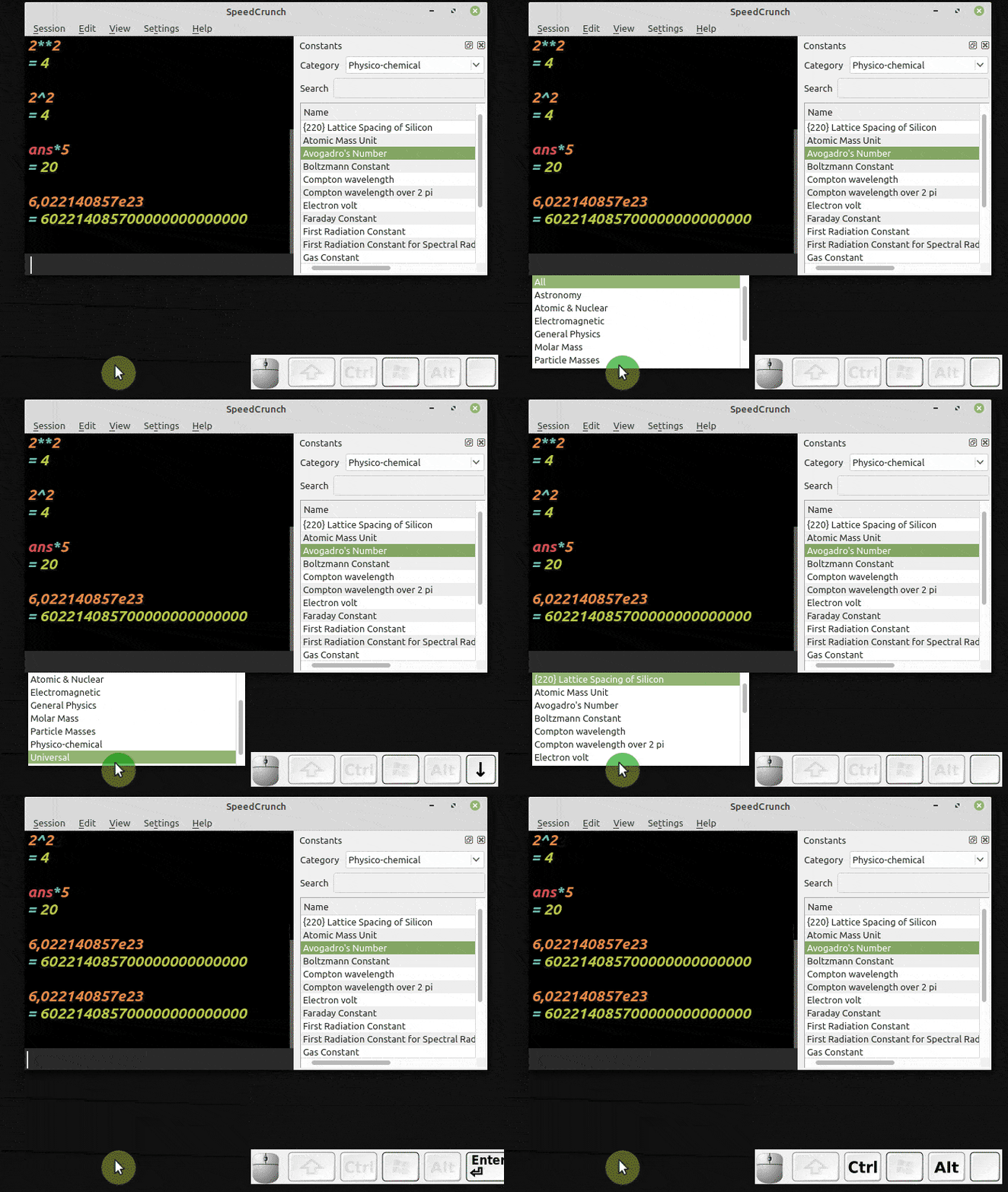
One of the things I like most about SpeedCrunch is the possibility of working with the keyboard only, without resorting to the mouse. This saves a lot of time. When you press Ctrl + Space, a small menu opens and you can select the constants from there. Note in the animation below that I added a panel showing the keys being pressed, to select the Avogadro constant again, but now using only the keyboard:
Much faster, don’t you agree?
Several forms of numeric representation #
Note in the history that the constant is stored in the program as
6.022140857e23, but the result is displayed in full. SpeedCrunch,
like many other calculators, uses the letter e (the input also
accepts the uppercase letter E) as a synonym for a power of 10.
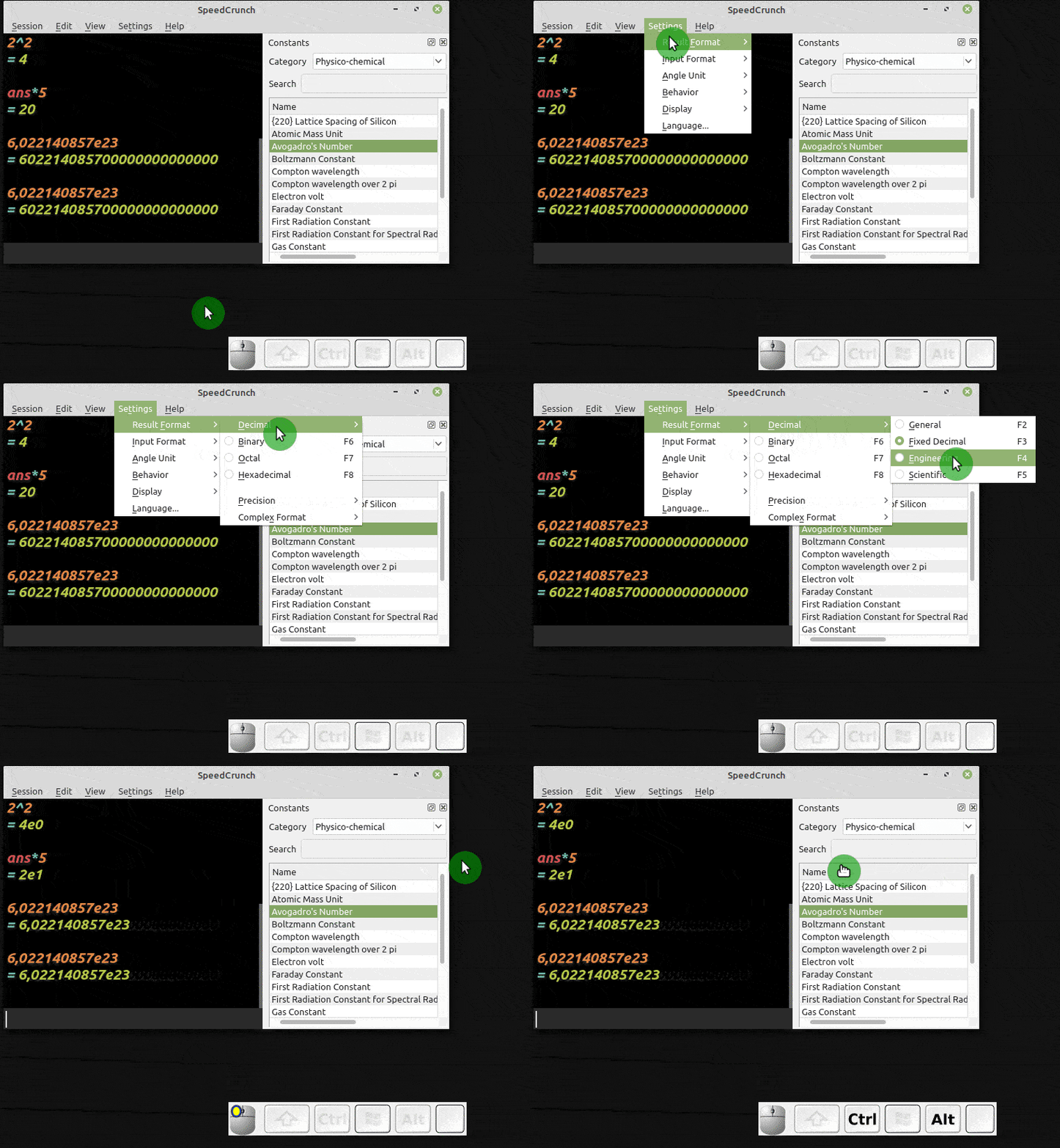
In science we usually work with scientific notation. So we can
configure the calculator to display the results this way, following
the steps below. Note that there are other display forms in the menu, more
common in computer science (binary, hexadecimal, and octal).
The shortcut, so you don’t have to go through the menus, is to press F5.
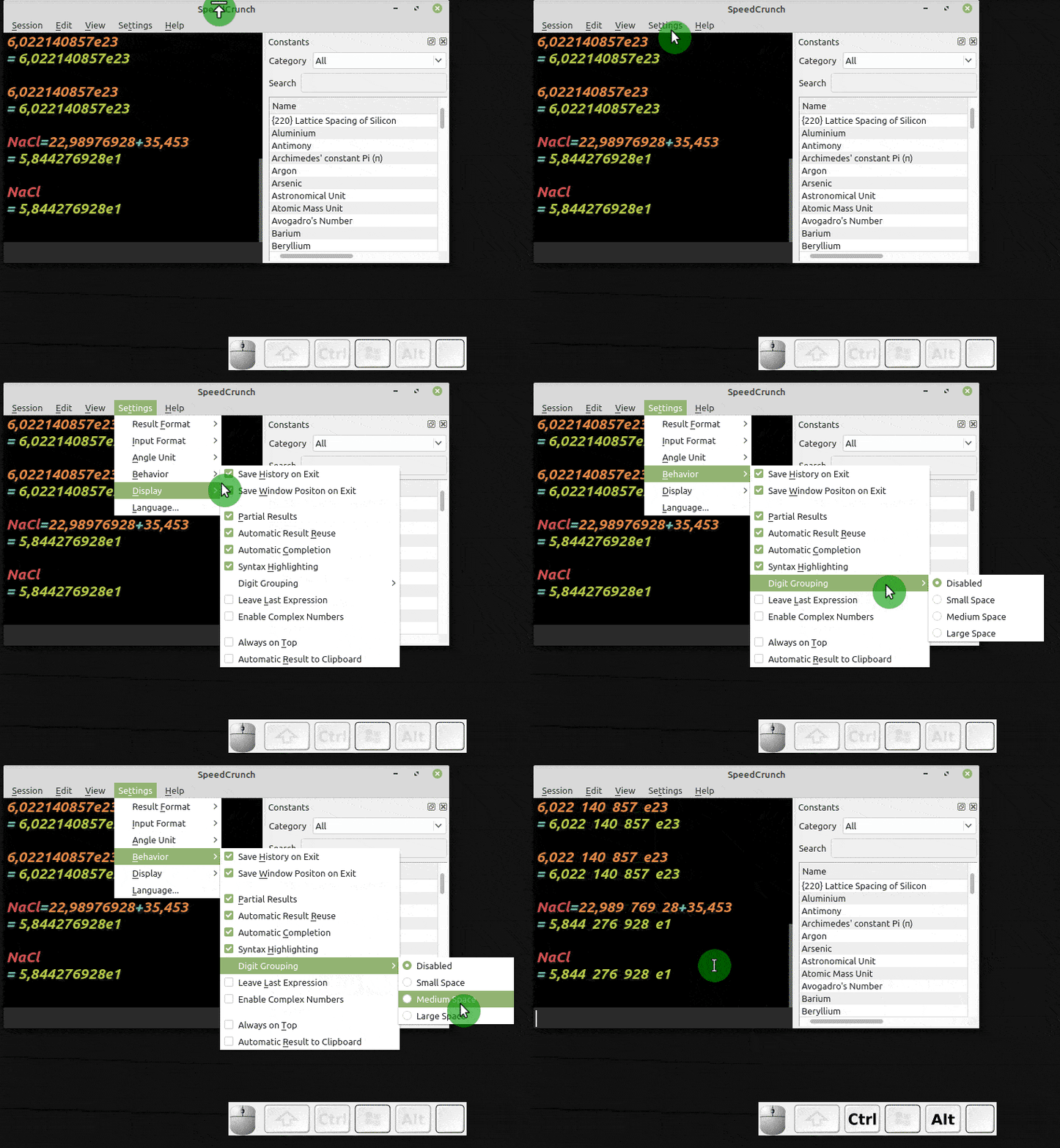
Something I find quite useful is to increase the separation between digits every three digits a bit. This makes reading easier when there are many decimal places or when you need to copy the values to paper:
Storing your own constants #
I am a chemist by training, and one kind of calculation I often need to do is
computing the molar mass of a given compound. It would be very useful to be
able to store the result to reuse when necessary. This can be done by creating
a constant and storing the value in it. Let’s calculate the molar mass of
sodium chloride, NaCl, with the values present in the calculator and store it
in a constant called NaCl:
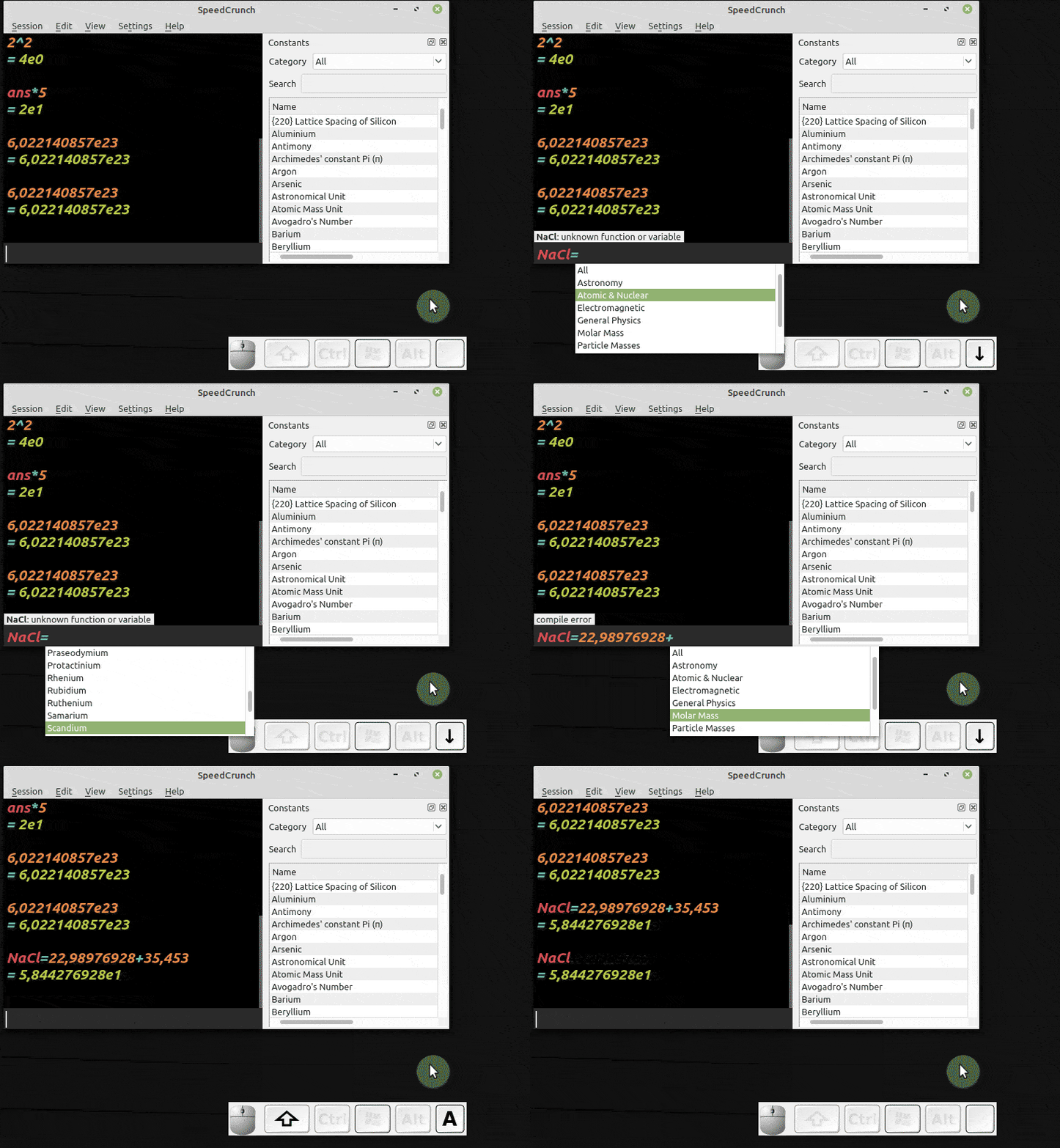
Note that now you just have to type NaCl and the value is recognized.
This can be done in any situation. For example, the radius of the Earth, at the equator, is 6378 km. I can create a constant and store this value. But here comes an issue we have not worried about yet: what about units?
Working with units #
When I talked about constants earlier, I showed the menu and that the values
originally stored in the program are in SI units. So, the molar masses of
chemical elements, for example, are in g/mol. By default,
SpeedCrunch does not associate units with the values, leaving it to the user
to know the units and take care not to perform invalid operations from the
point of view of dimensional analysis. However, we can explicitly associate a
unit with a given value. For example, let’s create a constant called
r_terra_eq to store the Earth’s radius at the equator mentioned earlier:
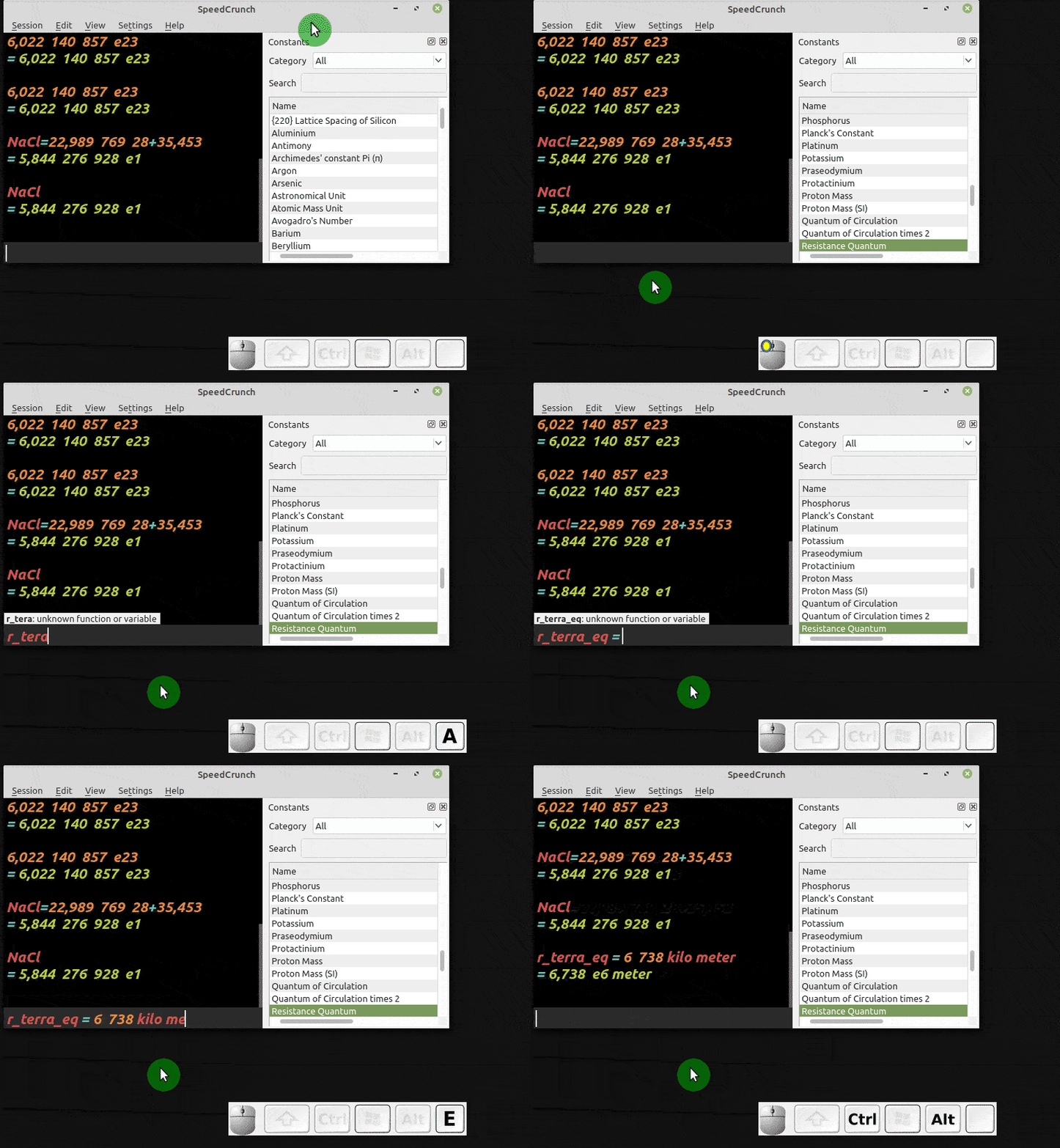
Note that you just need to write the unit and, when necessary, the prefix, and
the calculator recognizes the unit and even expresses the result in the SI base
unit. What is more, the calculator stored this result as a value associated
with units of dimension. This way, conversions can be made to other units that
the calculator recognizes using the word in. If we want, for example, to know
how many Earth radii are equivalent to 1 astronomical unit, we just do:
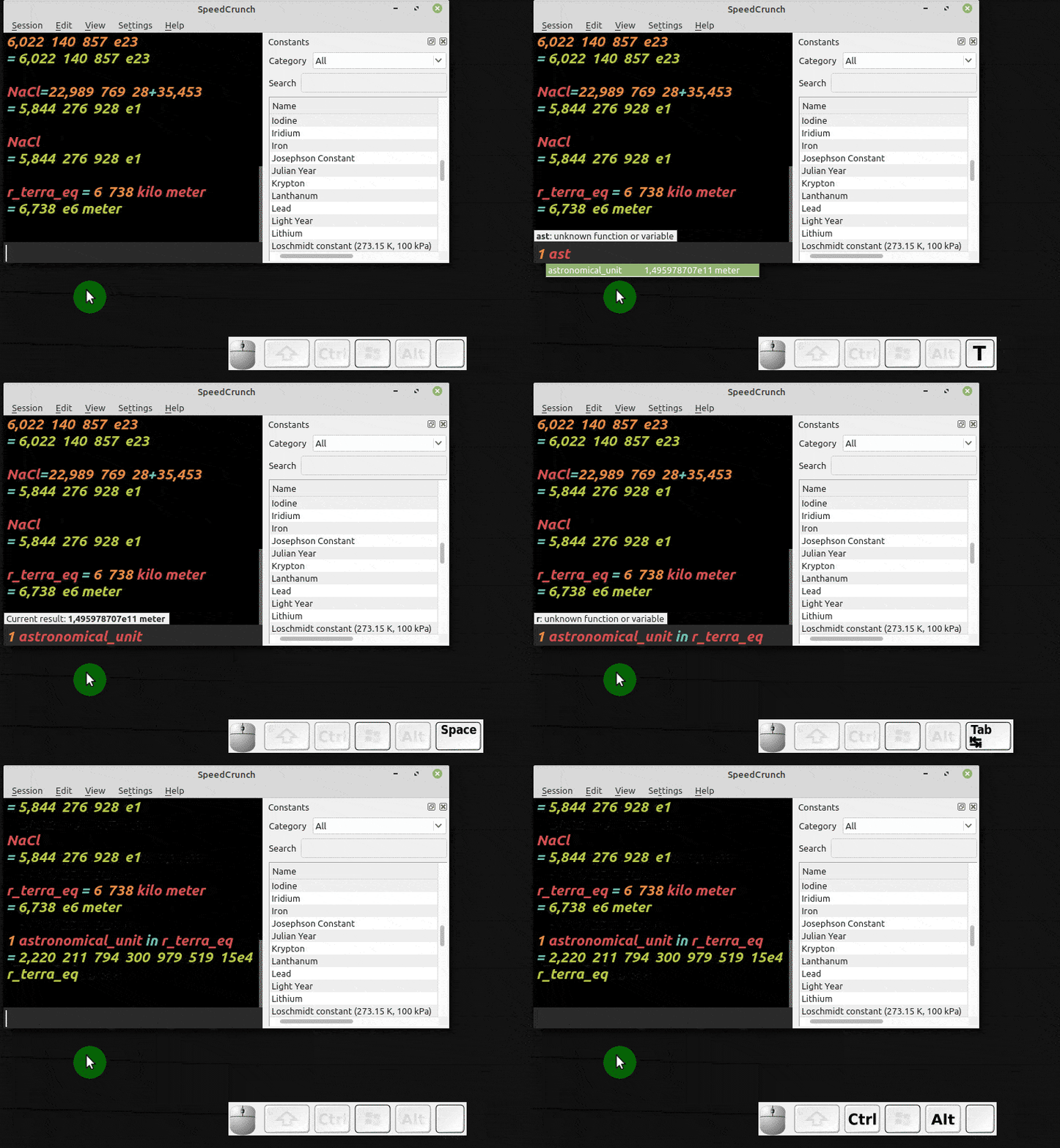
That is, more than 22 thousand Earths fit in one astronomical unit. This conversion is only possible because both units are lengths. The program gives an error if an invalid conversion is requested. Try it!
If the excess of decimal places in the result bothers you, you can limit it by following the animation below, where I will limit it to 8 digits, more than enough for most cases:
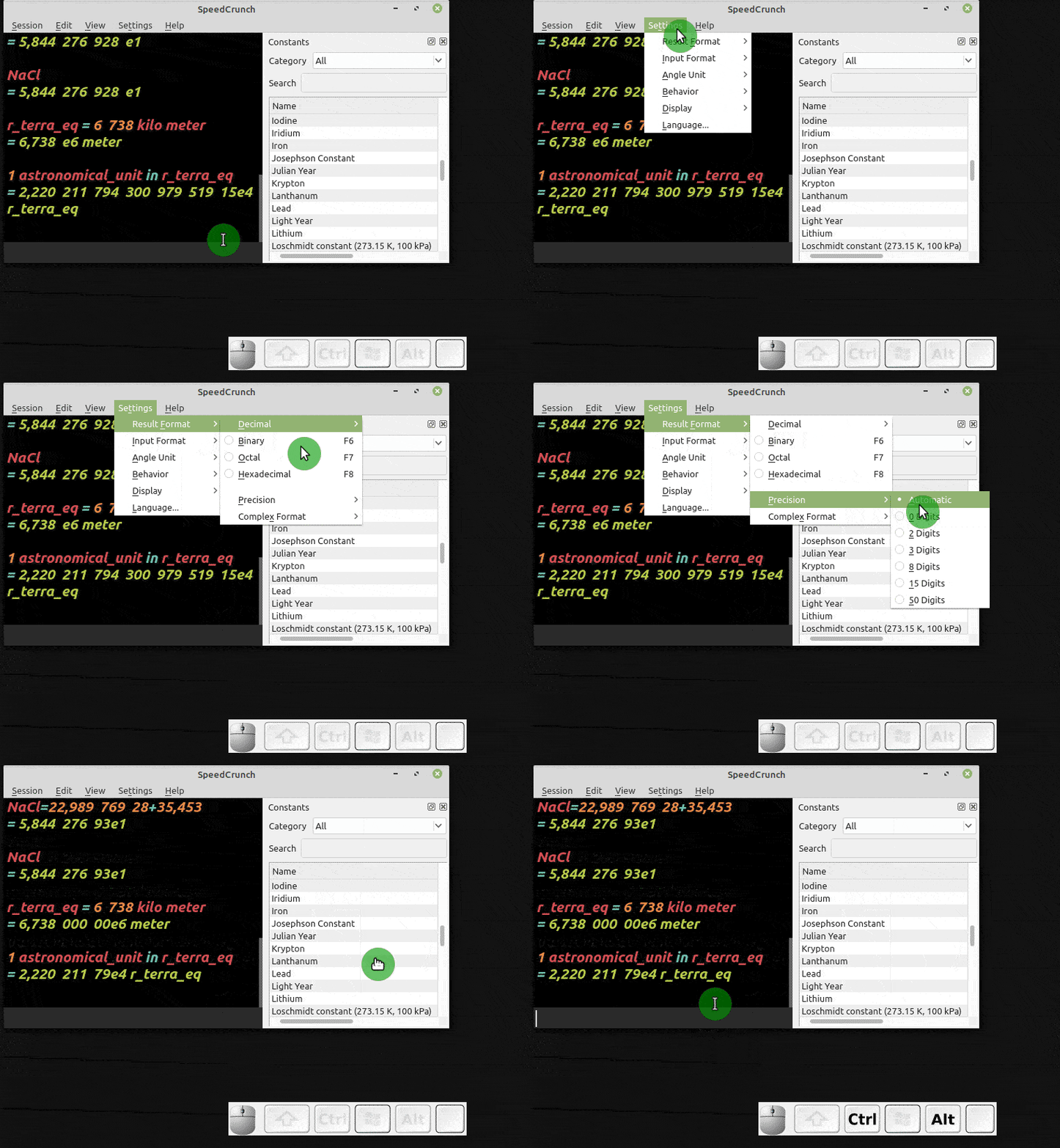
And if you are bothered by having to type the units in full, you can associate the usual abbreviations with each unit. For example:
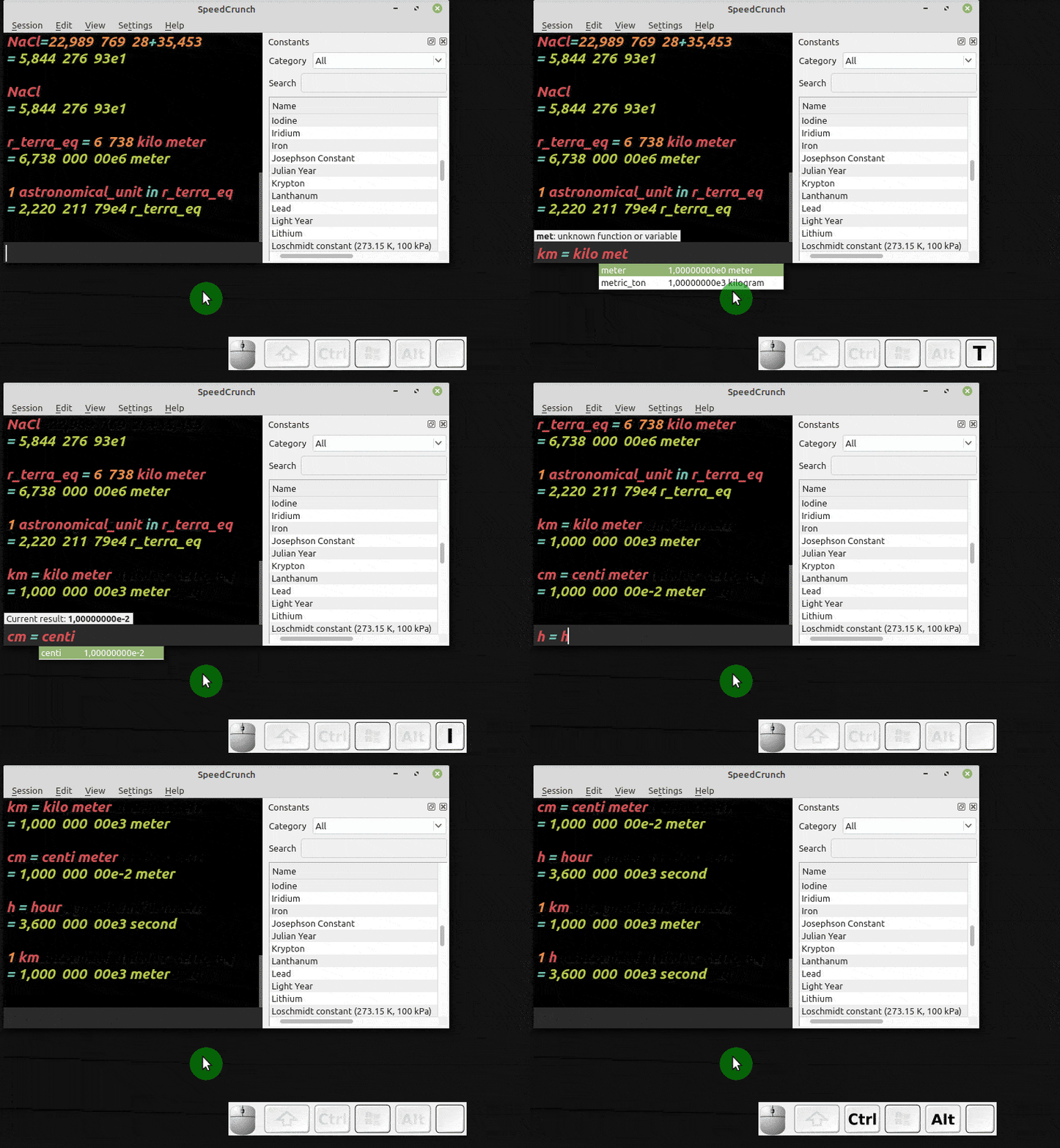
The calculator was well programmed to perform unit conversions internally so as to give results that make sense. Let’s test it using the good old ideal gas equation. Remembering from science classes, we know that 1 mol of an ideal gas at Standard Temperature and Pressure (STP, 1 atm and 0 °C, which is 273.15 K) has a volume of approximately 22.4 liters. Recall:
$$ PV = nRT \therefore V = \frac{nRT}{P} $$We have the value of R in the calculator, but it is in SI units. One of the
few drawbacks of this calculator is that the values of the constants do not
come with the associated units by default, so let’s associate the unit with the
value and store the result in a constant called R:
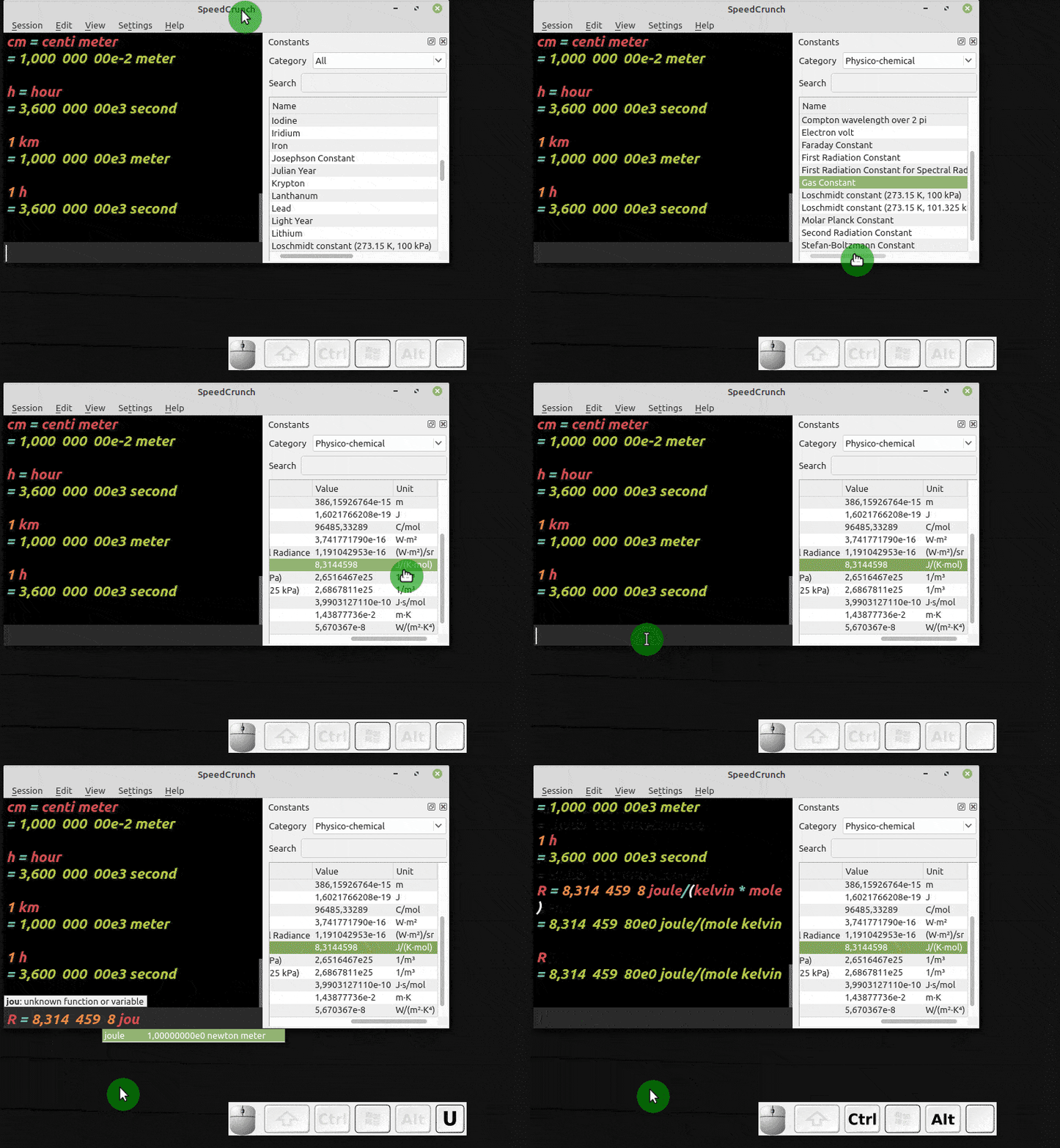
Now let’s assign to a variable called V the result of the calculation we
want. Note that the values are being entered with their respective
units:
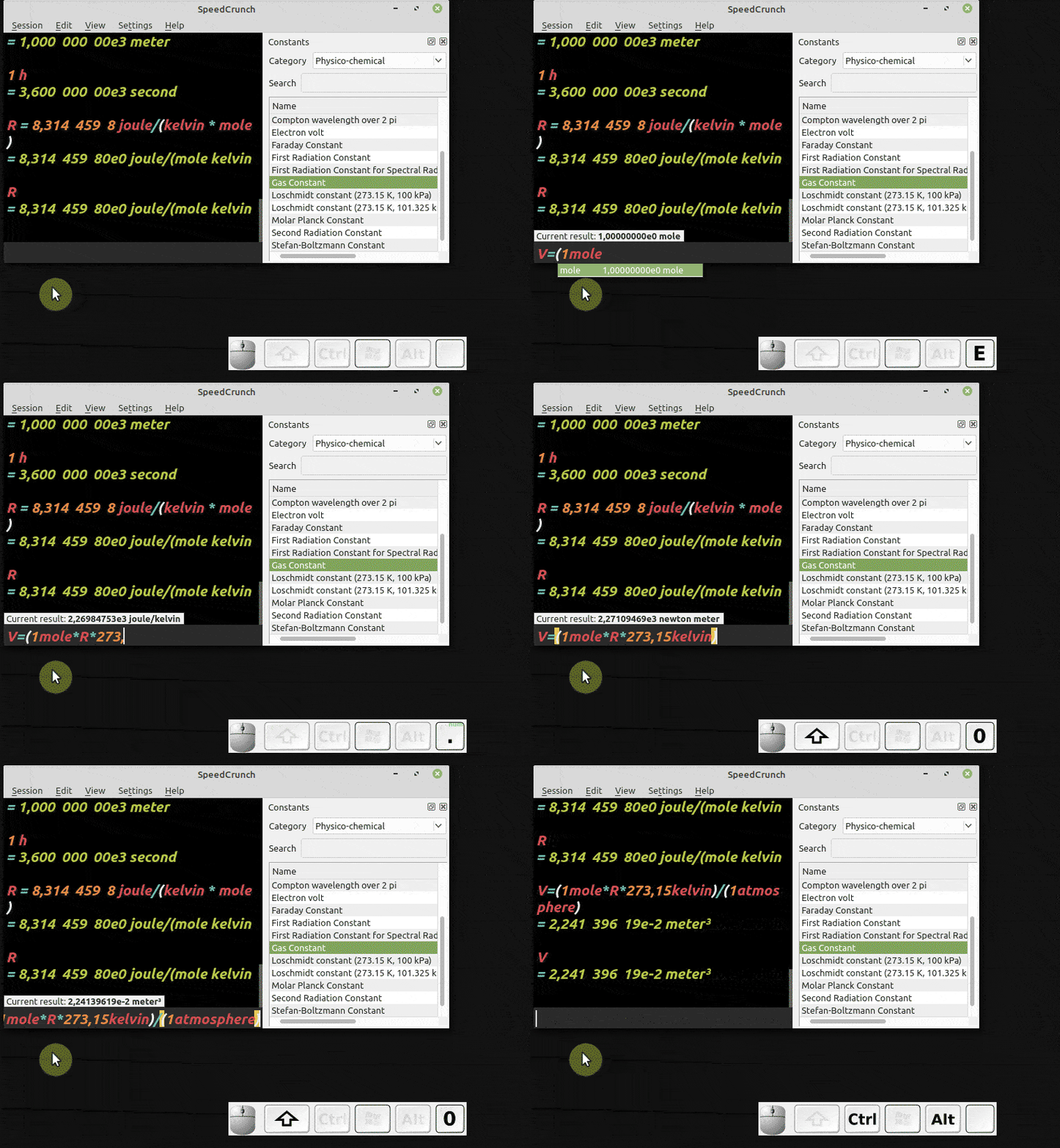
The atmosphere is not an SI unit, but note that the calculator made the proper conversions and expressed the result in the SI unit, cubic meter. But we can easily request the conversion to liter:
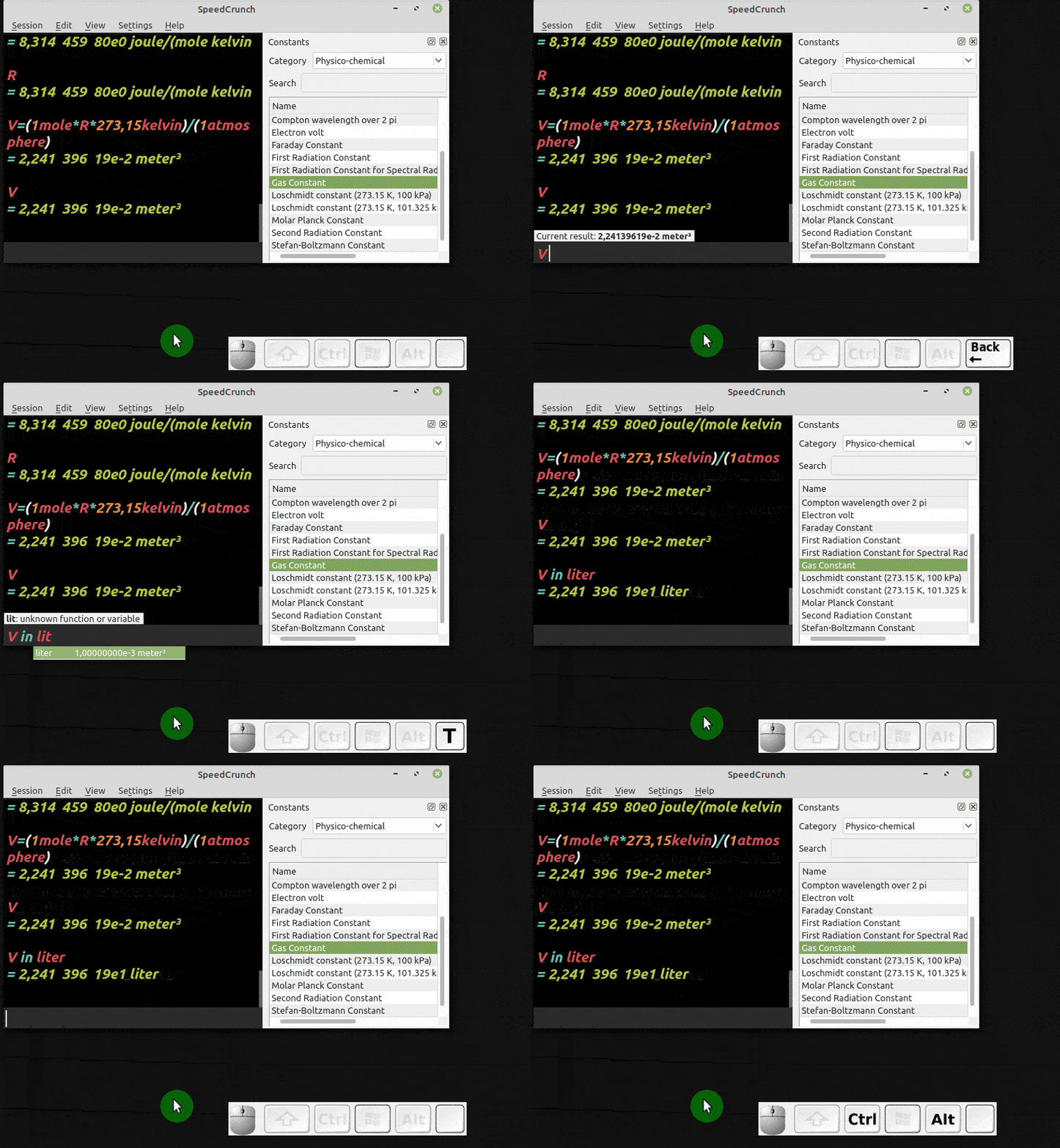
We got the expected result!
Functions #
The more attentive among you may have found it odd earlier when I passed the temperature already in Kelvin to compute the volume of the ideal gas. If the calculator handles conversions, why not enter the temperature in degrees Celsius and let it convert to Kelvin?
This is a limitation of the calculator. Actually, to be fair, of most of the calculators available. They work well with conversions that can be done by simply multiplying by a conversion factor. However, they do not perform the operation when the conversion involves addition or subtraction. In fact, few conversions involve more than just a conversion factor, and among these few, temperature conversions stand out. Thus, the only temperature unit the calculator recognizes is Kelvin, as explained in the calculator’s user guide available on the project website.
But nothing we cannot solve. And to solve it we will use the concept of function.
First, let’s see the functions already present in the calculator. There are dozens, and they can be accessed through the menu or directly by typing the name:
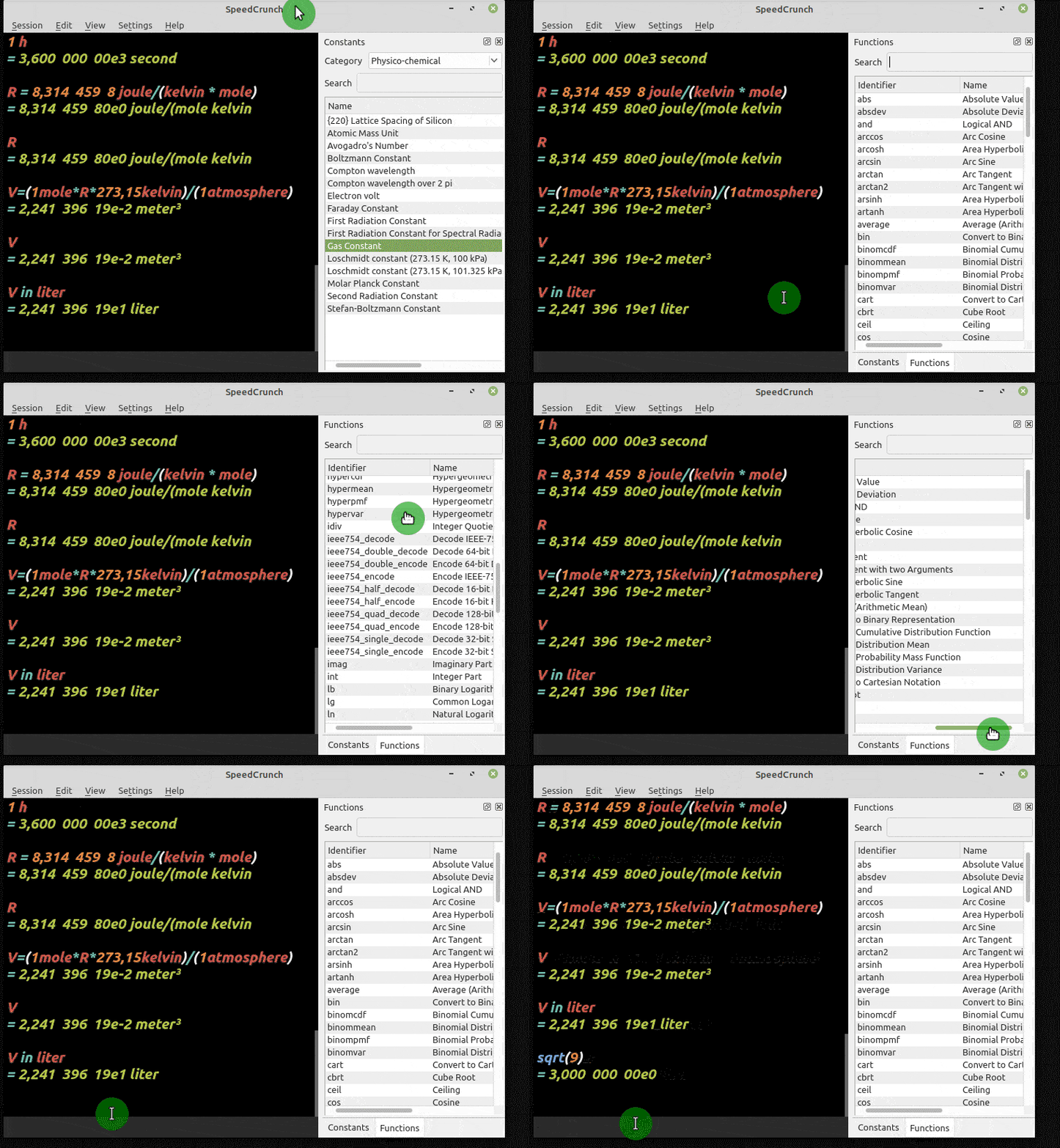
Note in the animation above that we can browse the existing functions through
the menu. If we double-click a function, it goes to the input line. We can
also type the name of the function and use it directly; in the animation we use
the sqrt function to compute the square root of 9.
Defining your own functions #
Of course we can define our own function. So let’s define a function
that computes the temperature in Kelvin from a temperature in Celsius.
We know that to convert from Celsius to Kelvin we just add 273.15 to the
Celsius value. So, let’s define a function
T_kelvin(T_celsius) = (T_celsius + 273.15) kelvin. The “kelvin” after the
operation in parentheses makes the result come out with the associated unit,
since I plan to use the result later. Let’s see:
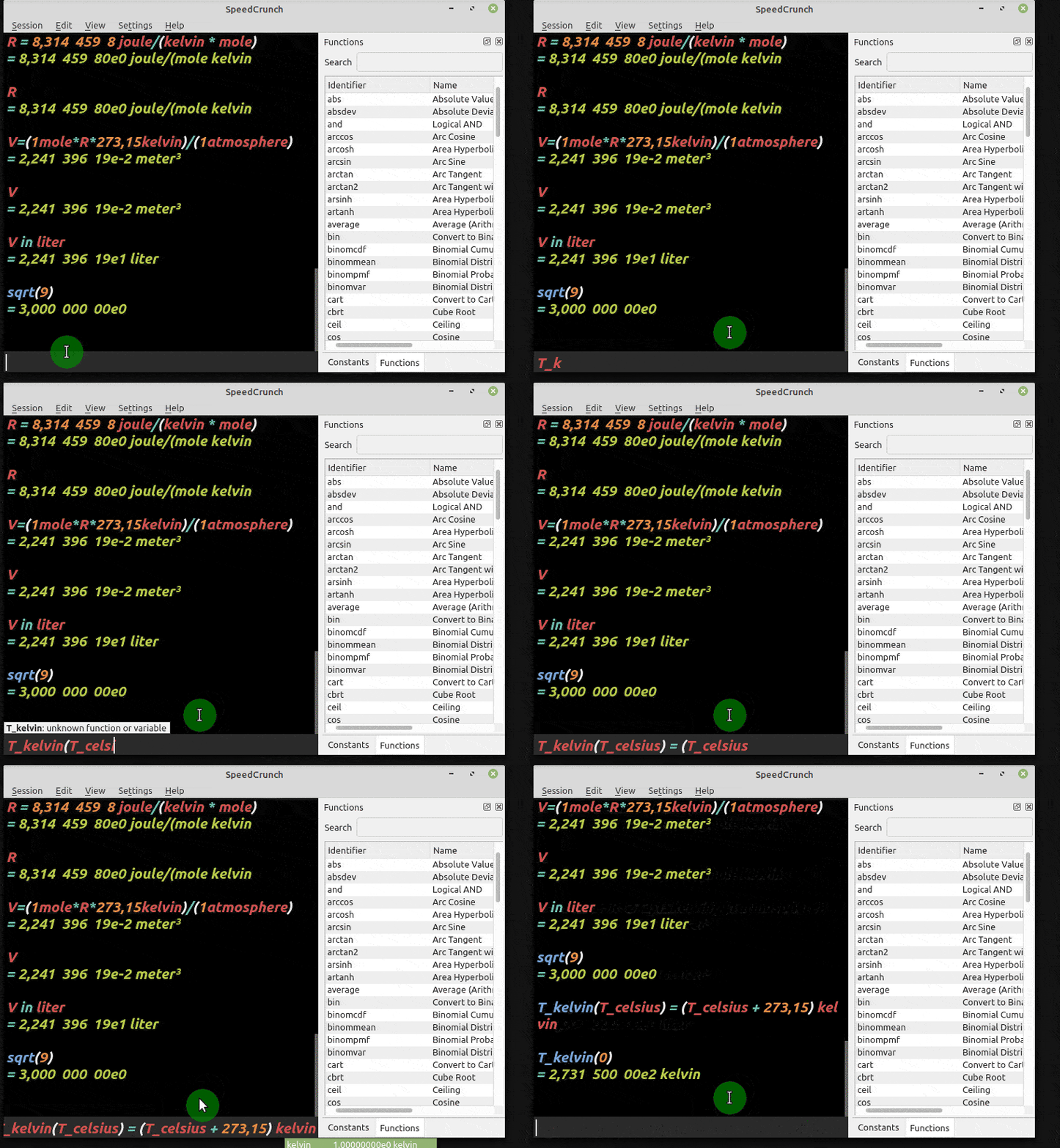
Test it by passing the value 25 as the argument. The answer must be 298.15 K.
We can also create functions with more than one argument, just by separating
them with ;. Thus, the whole calculation done earlier to compute the volume
of one mol of an ideal gas can be simplified if we create a function that takes
the pressure, the number of moles, and the temperature, with their respective
units. Remember that we already defined R in this tutorial with its SI unit,
so we will reuse it in the definition of our function, which we will call
V_ideal:
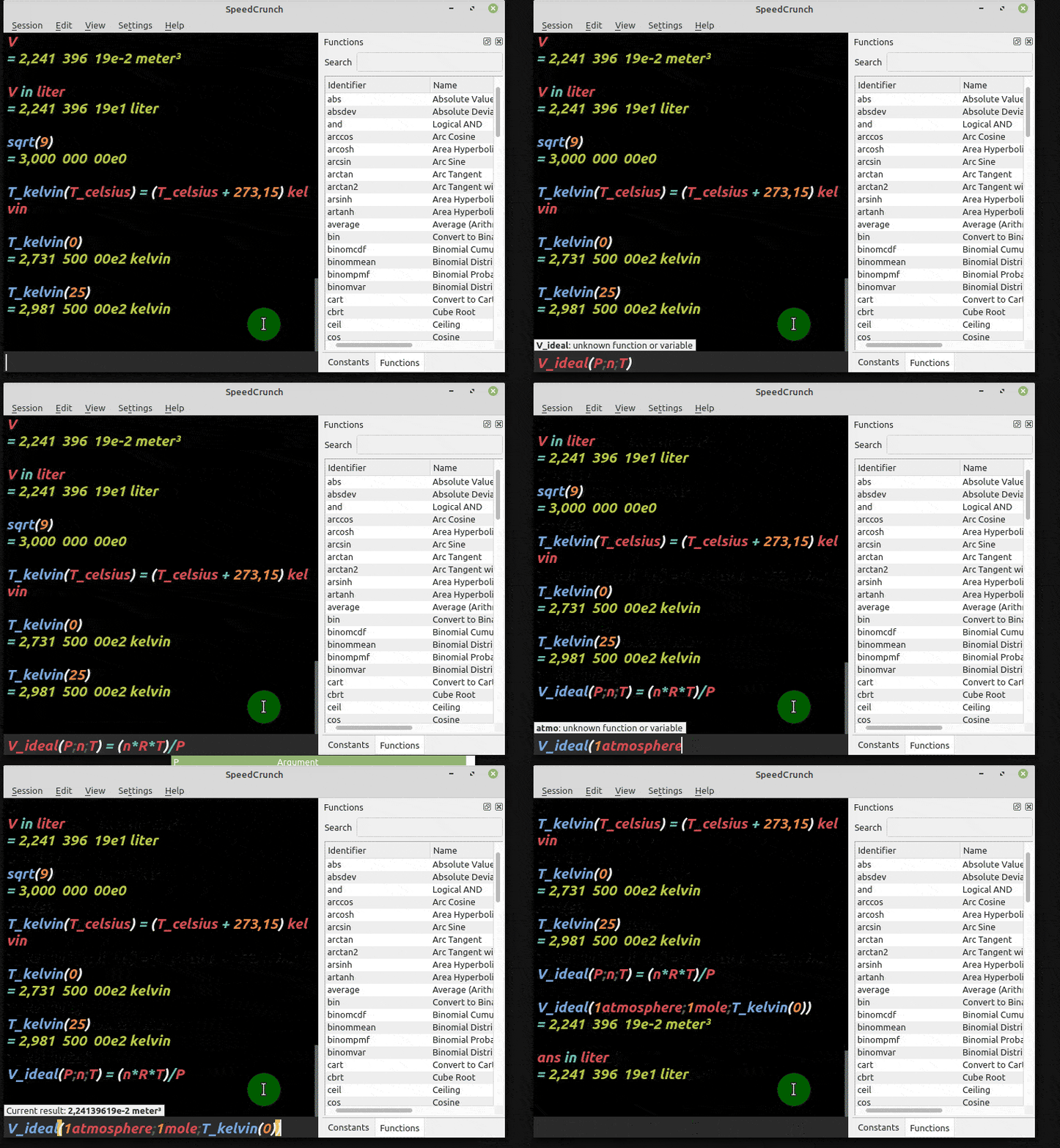
Note in the animation that we can even pass the function we created to convert temperature from Celsius to Kelvin, since we defined the function with a unit.
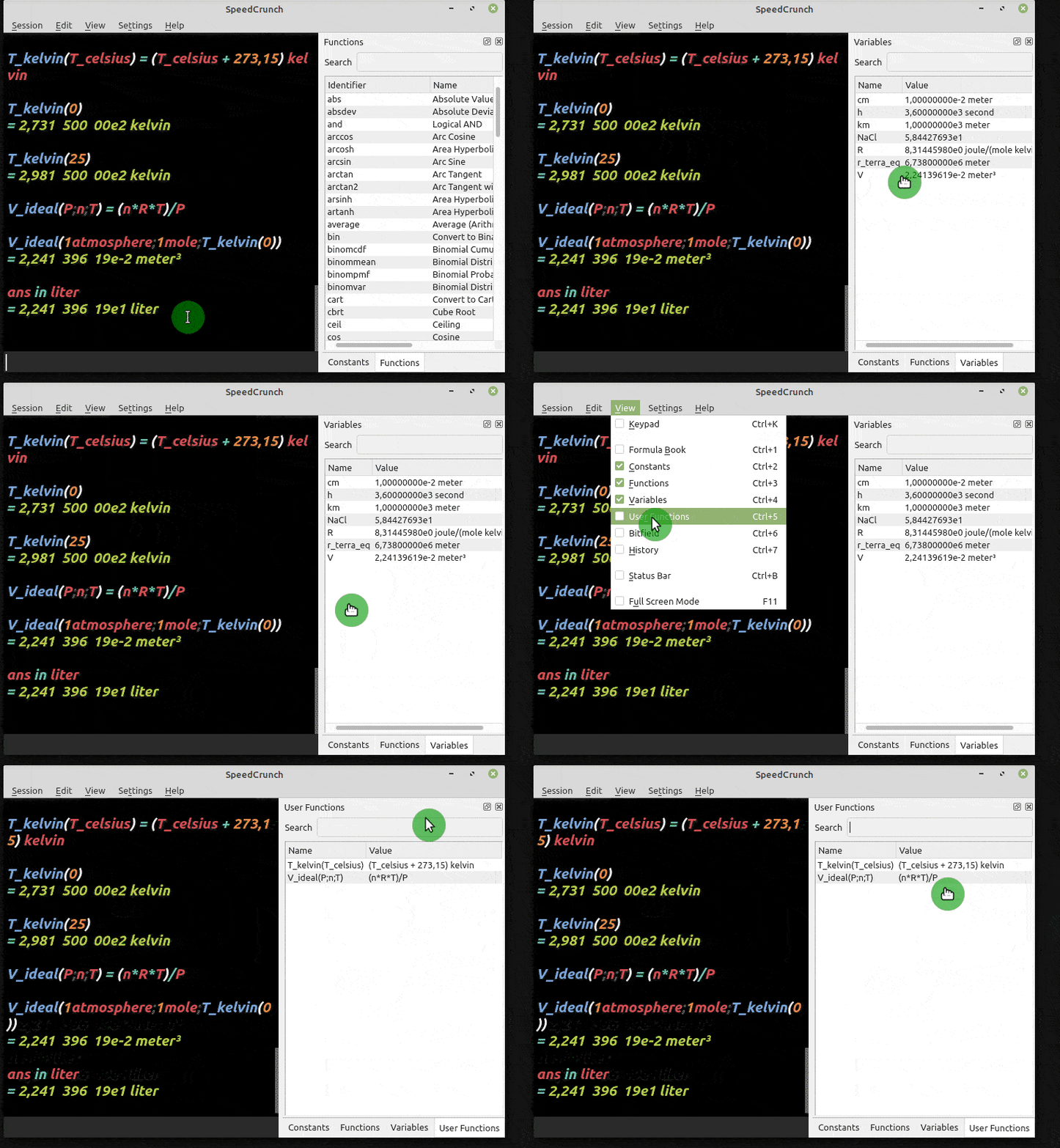
The function stays saved for later use whenever you need it. User-created constants, variables, and functions can be consulted:
Overall evaluation, final thoughts, and how to contribute to the project #
SpeedCrunch is an excellent scientific calculator for the desktop, standing out from the others for handling units and for having visual highlighting of reserved words, functions, and variables (syntax highlighting). It is quite customizable, with many more options than the ones shown here.
It is excellent for students who want to check whether their calculations involving conversions are correct. And, as a teacher, I often use it in class when a projector is available to do calculations with the students, especially because of how easy it is to discuss operations with units, scientific notation, and even significant figures.
In my use I only miss that the stored constants are not already entered with their units by default and that there is no way to export the constants and functions created (but this only affects those who use more than one computer, at home and at work, for example). It would also be great to have a mobile version.
However, such limitations are tiny. And we must remember that this is a free program, the project is maintained by donations, and you can contribute through the project website. Since it is open source, you can also contribute with fixes, questions, and suggestions in the project repository.
See you next time!


