

This article describes how developers can contribute pull requests to an upstream repository and how the owners of upstream repositories can accept such pull requests. We will go through the whole workflow involving forks and pull requests popularized by the GitHub platform and equally valid on similar platforms such as GitLab.
Introduction #
Every project has a main development branch to which developers regularly
push commits. Usually, this branch is named master or main, but some
projects adopt a develop or trunk branch, or some other one, for
day-to-day development activities. This main development branch will be
called the main development branch throughout the article to make the text
more general. However, in the diagrams and in the examples involving commands,
we will use master as the example of this branch to make it easier to
understand.
The following terms are used in the command examples and in the diagrams of this article:
GITHUB:github.comor the domain/hostname of your private GitHub Enterprise systemUSERorCONTRIBUTOR: the user who forks an upstream repository, creates pull requests, and sends them to the upstream repository.UPSTREAM-OWNER: owner of the upstream repository. This is the name of the user or organization that accepts the pull requests to the upstream repository.REPO: name of the repository.FILES: one or more files staged for a commit.TOPIC-BRANCH: branch where the contributor develops a specific feature. Referred to in the text as the topic branch.
Obviously, these terms must be replaced by appropriate values when used in a real situation.
After this introductory stage of the article, the terms will no longer be italicized, to make the reading more fluid.
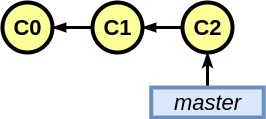
Beginners should always remember that a branch is not a container of commits, but a pointer that points to a commit in the history.
In the figure below, the master branch points to C2, the most recent
commit of a sequence of three:
When a new commit is made on a branch, the pointer simply moves to point to the last commit on the branch.
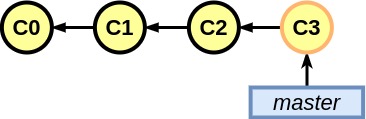
A branch is merely a pointer to the tip of a series of commits. With this in mind, complex operations such as rebase and fast-forward merges become easier to understand and use. If you are not familiar with these operations, no problem, they will be explained at the right time.
The next section is a quick guide to the most used commands. The remaining sections go deeper into some more specific but still important aspects of the workflow.
Quick guide #
Here we will see a brief summary of all the commands used in the article to create and merge pull requests. Use this section as a quick reference guide.
Creating a pull request #
- Fork the upstream and clone your fork
git clone https://GITHUB/USER/REPO.git
cd REPO
git remote add upstream https://GITHUB/UPSTREAM-OWNER/REPO.git
git remote -v- Work on a new topic branch.
git checkout -b TOPIC-BRANCH
git add FILES
git commit
git push origin TOPIC-BRANCH-
To create the pull request, go to your fork on GitHub, switch to the topic branch, and click ‘Compare & pull request’.
-
Keep your fork’s main development branch up to date with the upstream’s.
git checkout master
git pull upstream master
git push origin master- Add files that were left out of the last commit (optional).
git add FILES
git commit --amend- Rebase the topic branch onto the main development branch (optional).
git checkout TOPIC-BRANCH
git rebase master- Edit, for example, the last 3 commits on the topic branch (optional).
git checkout TOPIC-BRANCH
git rebase -i HEAD~3- Force push rebased/edited commits to the pull request (optional).
git push -f origin TOPIC-BRANCH- Delete the topic branch after the pull request is merged.
git checkout master
git branch -D TOPIC-BRANCH
git push -d origin TOPIC-BRANCH
Merge pull request (without merge commit) #
- Clone the upstream repository.
git clone https://GITHUB/UPSTREAM-OWNER/REPO.git
cd REPO- Keep the local main development branch up to date.
git checkout master
git pull- Pull the changes of the pull request into a temporary branch.
git checkout -b pr
git pull https://GITHUB/CONTRIBUTOR/REPO.git TOPIC-BRANCH-
If the command above does not create a commit for the merge, ignore this comment and follow the instructions after it. If the command above did create a commit for the merge, first know that there is no problem in this situation. However, if you do not want to have this specific merge commit, choose one of the following alternatives:
-
Ask the contributor to rebase the topic branch onto the main development branch. After that is done, delete the temporary branch, and start over, pulling the changes again. (Commands: git checkout master; git branch -D pr)
-
Go to the pull request page on GitHub, click the menu next to ‘Merge pull request’, select ‘Rebase and merge’, and click ‘Rebase and merge’
-
Rebase the topic branch onto the main development branch. Then, follow the commands below. Then, close the pull request manually on GitHub. (Command: git rebase master)
-
-
Merge the pull request and delete the temporary branch.
git checkout master
git merge pr
git branch -d pr- Push the updated main development branch to the upstream repository.
git push origin masterMerge pull request (with merge commit) #
- Clone the upstream repository.
git clone https://GITHUB/UPSTREAM-OWNER/REPO.git
cd REPO- Keep the main development branch up to date.
git checkout master
git pull- Pull the changes of the pull request into a temporary branch.
git checkout -b pr
git pull https://GITHUB/CONTRIBUTOR/REPO.git TOPIC-BRANCH- Merge the pull request and delete the temporary branch.
git checkout master
git merge --no-ff pr
git branch -d pr- Push the updated main development branch to the upstream repository.
git push origin masterThe sections Creating Pull Requests and Merging a Pull Request elaborate on these commands in detail.
Git basics #
Important concepts #
If you are a complete beginner, it is worth briefly reviewing what Git is and how it works at a basic level. Users who already know what the working directory, the staging area, and the Git directory (the repository itself) are can skip to the next section.
Git treats its data as a set of snapshots of a miniature filesystem. Every time you commit, or save the state of your project in Git, it basically takes a “picture” (snapshot) of all your files and stores a reference to that set of files. To be efficient, if files have not changed, Git does not store them again, just a link to the file already stored. Seen another way, Git treats its data as a stream of file states.
Everything in Git goes through a checksum before being stored and is referenced by that checksum. This means it is impossible to change the contents of any file or folder without Git detecting it. You will not lose information during transfer and will not receive a corrupted file without Git being able to detect it.
The mechanism Git uses for this verification is called a SHA-1 hash. This is a sequence of 40 characters made up of hexadecimal characters (0-9 a-f) and is computed from the contents of a file or directory structure in Git. A SHA-1 hash looks like this:
24b9da6552252987aa493b52f8696cd6d3b00373
Everything is stored in the database by the content hash value and not by the file name.
Your files can be in three main states: committed, modified, and staged. Committed means the data is safely stored in your local database. “Modified” means you changed the file but have not yet committed it to your database. “Staged” means you marked the current version of a modified file to go into your next commit.
This leads us to three main sections of a project: the Git directory (which is the repository itself), the working directory, and the staging area.
The figure below shows the three sections and the operations that move files from one to another:
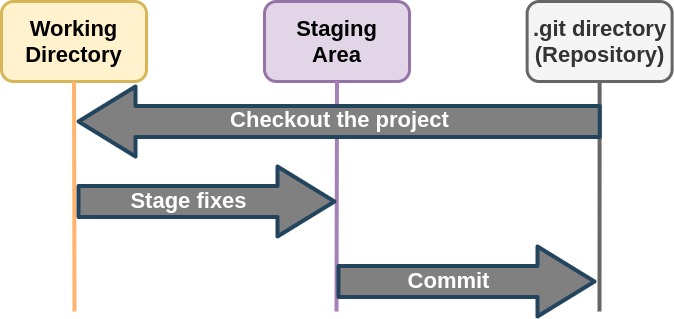
The Git directory is where Git stores the metadata and the object database of your project. This is the most important part, and it is what is copied when you clone a repository from another computer.
The working directory is a simple copy of one version of the project. These files are pulled out of the compressed database in the Git directory and placed on disk for you to use or modify.
The staging area is a file, generally contained in your Git directory, that stores information about what will go into your next commit. It is sometimes referred to as the “index”.
The basic Git workflow is:
-
1
Modify
You modify files in your working directory. -
2
Stage
You stage the files, adding snapshots of them to your staging area. -
3
Commit
You commit, which takes the files as they are in the staging area and stores snapshots of them (states) permanently in the Git directory.
If a particular version of a file is in the Git directory, it is considered committed. If it has been modified but was added to the staging area, it is considered staged. And if it was changed after being checked out but has not been staged, it is considered modified.
Recording changes #
Suppose you have a project in a Git repository. Each time the project reaches a state you want to record, you need to commit the changes you made.
Remember that each file in your working directory can be in one of two states: tracked and untracked. Tracked files are files that were included in the last snapshot; they can be unmodified, modified, or staged. In short, tracked files are the files Git knows about.
Untracked files are everything else: any files in your working directory that were not included in your last snapshot and are not in the staging area. When you first clone a repository, all your files will be tracked and unmodified, since Git has just obtained them and you have not yet made any edits.
As soon as you edit some files, Git considers them modified, because there have been edits since your last commit. Then, you stage the edited files and commit your changes. And the cycle repeats.
The figure below summarizes this file lifecycle:
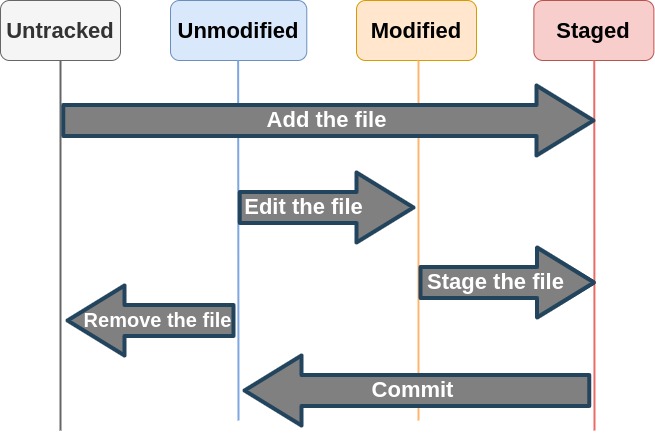
The main tool for determining which files are in which state is the
git status command.
That was a review of the basics of how Git works. Knowing this, the rest of the article should flow naturally.
Creating Pull Requests #
This section is for developers who want to contribute new commits to the upstream repository from their personal forks.
Fork and Clone #
On GitHub, fork the upstream repository to your personal account.
Then, clone your fork from your personal GitHub account to your local system
and set the URL of the upstream repository as a remote repository named
upstream.
git clone https://GITHUB/USER/REPO.git
cd REPO
git remote add upstream https://GITHUB/UPSTREAM-OWNER/REPO.git
git remote -v
Now the remote repository named upstream points to the upstream repository
and the one named origin points to your fork.
Work on the Pull Request #
Work on the new pull request in a new topic branch and commit to your fork.
Remember to use a meaningful name instead of TOPIC-BRANCH in the following
commands.
git checkout -b TOPIC-BRANCH
git add FILES
git commit
git push origin TOPIC-BRANCH
Create the pull request through the GitHub web interface with the following steps:
- Go to your fork on GitHub
- Switch to the topic branch
- Click Compare & pull request
- Click Create pull request
Wait until an upstream developer reviews and merges your pull request.
If there are reviewer comments that must be taken into account and lead to
necessary changes in the code, keep working on your branch, making commits and,
optionally, doing rebases, amends, squashes, and all the usual operations.
Push your changes to the topic branch of your origin fork. Such changes
automatically become available in the pull request.
In this fork and pull request workflow, a contributor should never make commits to the main development branch of their personal fork. This way, it is very simple to keep that main branch in sync with the main branch of the upstream repository. This will be explained next.
If a reviewer of your pull request pushed commits to your PR branch, you must update your local branch with those commits:
git checkout TOPIC-BRANCH
git pull origin TOPIC-BRANCH
If, in the time between the creation and the review of the pull request, there are commits on the upstream’s main branch that lead to conflicts with the pull request, you will see a warning from GitHub in your Pull Requests tab about it and the reviewers may ask you to modify your pull request to resolve these conflicts:
git checkout TOPIC-BRANCH
git pull upstream master
# resolve the conflicts
git push origin TOPIC-BRANCH
Keep your fork up to date #
As new pull requests are merged into the upstream’s main development branch, the main development branch of your fork starts to fall behind, getting out of date.
The following commands show how to keep your fork’s main branch up to date with new commits from the main branch of the upstream repository.
git checkout master
git pull upstream master
git push origin master
The git pull command simply does a “fast-forward” merge of the main branch
from an earlier commit up to the latest commit of the upstream’s main branch.
In other words, when you try to merge a commit with another commit that can be reached by following the first commit’s history, Git simplifies things and just moves the pointer forward because there is no divergent change to merge. This is known as a “fast-forward” merge.
When your main development branch falls behind the corresponding upstream branch, the upstream’s main development branch continues linearly from the last commit of your main development branch, assuming there are no additional commits on your main development branch.
The figure below shows this situation: the local master stopped at C3, while
upstream/master went on to C9, and the topic branch, to C6.
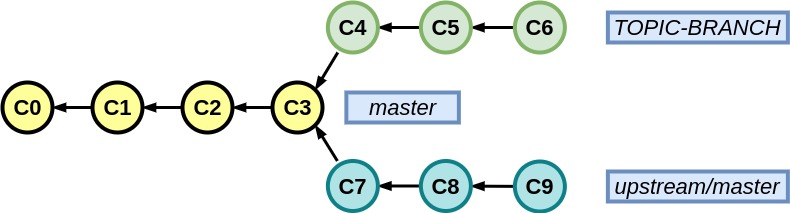
With such a commit history, when the upstream’s main development branch is merged into your main branch, the merge is done simply by moving the pointer of your main branch forward to the last commit of the upstream’s main branch.
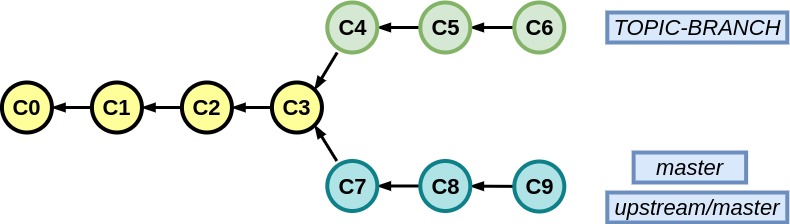
After the merge is complete, the main development branches of both the upstream and your repository point to the same commit.
Amending the last commit #
This is an optional step to redo the last commit. Sometimes we realize, after making a commit, that some files needed more changes or that the commit message needs to be changed. In these cases, it is necessary to do an “amend” (literally, to “mend” the last commit).
In the figure below, the last commit of the topic branch is C6:
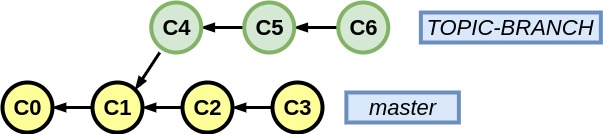
Git lets you take the last commit, modify the changes made in that commit, and reapply the new set of changes as a new commit that overwrites the last one.
In the figure below, C6 was replaced by C6’:
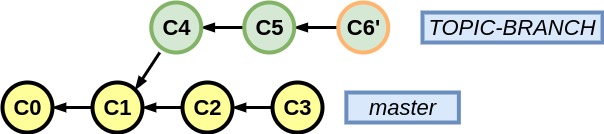
To do so, first make the necessary changes to the files. Then stage them normally for commit. Then, do the amend as in the commands below. The commit message can be modified when the editor configured for Git appears.
git add FILES
git commit --amend
Although the example above shows only the git add command to modify or add
files, amending the last commit can also involve removing, moving, and renaming
files with git rm and git mv.
To update only the commit message without modifying files, just run
git commit --amend.
Rebasing commits #
This is an optional step to keep the commit history as linear as possible.
The main development branch may have diverged since the topic branch was created:
It may be a good idea to move the commits of the topic branch and place them on top of the main development branch, so that the topic branch extends linearly from the last commit of the main development branch.
The result is the one in the figure below:

The following commands show how to rebase the topic branch onto the main development branch.
git checkout TOPIC-BRANCH
git rebase master
Editing commits #
This is an optional step to keep the commit history clean and concise.
A pull request may contain several commits. Sometimes it may be necessary to amend a commit that is not the last one. In these cases, we do what is called an interactive rebase.
After developing what is needed on the topic branch, the developer or a reviewer may spot problems that must be dealt with before merging into the upstream. This can lead to several new commits on the topic branch that ideally should have been part of the first commit.
In the figure below, these are the three commits C4, C5 and C6 of the topic branch:
In these cases, it may be a good idea to do what is called a squash (to crush) of several commits into a single coherent commit with all the related changes.
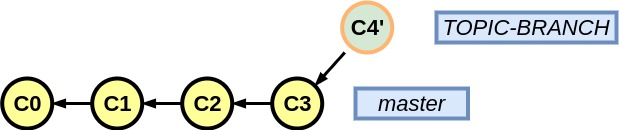
The following example shows how to amend the last 3 commits:
git checkout TOPIC-BRANCH
git rebase -i HEAD~3
Running these commands will open an editor with three lines, one for each of the last 3 commits, ordered from the most recent to the oldest, with instructions on how to edit each line. Something similar to the following:
pick f7f3f6d changed my name a bit
pick 310154e updated README formatting and added blame
pick a5f4a0d added cat-file

# Rebase 710f0f8..a5f4a0d onto 710f0f8
#
# Commands:
#  p, pick = use commit
#  r, reword = use commit, but edit the commit message
#  e, edit = use commit, but stop for amending
#  s, squash = use commit, but meld into previous commit
#  f, fixup = like "squash", but discard this commit's log message
#  x, exec = run command (the rest of the line) using shell
#
# These lines can be re-ordered; they are executed from top to bottom.
#
# If you remove a line here THAT COMMIT WILL BE LOST.
#
# However, if you remove everything, the rebase will be aborted.
#
# Note that empty commits are commented out
For example, to squash all three commits into one, leave the first commit
unchanged, replace pick with squash on the next two lines, save, and exit
the editor. The editor opens again; clear the commit message, save, and exit
the editor.
Besides pick and squash, there are other operations available that are
beyond the scope of this article. But just follow the instructions in the
editor to use them. Git will guide you through operations that require several
steps, offering suggestions and commands for each step.
Force push #
The steps in the last sections overwrite the branch history. If these steps are
performed after the branch was pushed for a pull request on GitHub, it is
necessary to use the -f or --force option when pushing:
git push -f origin TOPIC-BRANCHThe option is only necessary if you are pushing to an already existing pull request branch and when overwriting the branch history. Keep in mind that rewriting history is generally not a good idea, and this is one of the rare scenarios where such an action is safe, given that the commits are being applied to a personal branch of a personal fork, not affecting the upstream repository.
Deleting a branch #
Once an upstream developer merges your pull request, you can delete the topic branch from your local repository and from your fork.
git checkout master
git branch -D TOPIC-BRANCH
git push -d origin TOPIC-BRANCH
The next section, Merging a Pull Request, explains how an upstream owner can merge pull requests from contributors.
Merging a Pull Request #
This section is for developers who own an upstream repository and who handle pull requests from contributors.
There are two more common methods for merging commits: one that does not introduce an additional commit for the merge; and another that does. Both are perfectly acceptable and will be discussed next.
Which method to choose depends on whether you want to keep a concise commit history consisting only of development commits or whether you want to introduce additional commits for each merge in your commit history.
Merge without a merge commit #
Clone the upstream repository to your local system.
git clone https://GITHUB/UPSTREAM-OWNER/REPO.git
cd REPO
If the repository was already cloned earlier, make sure the local development branch is up to date with its counterpart in the upstream repository.
git checkout master
git pull
Create a temporary branch (pr in the example) to pull the contribution
(pull request) from a branch of the CONTRIBUTOR
git checkout -b pr
git pull https://GITHUB/CONTRIBUTOR/REPO.git TOPIC-BRANCH
Another way to pull the contribution is to use the number that GitHub
associates with each PR. In the following command, $ID refers to that number
git fetch origin pull/$ID/head:pr
git checkout pr
If the main development branch has diverged from the branch in the pull request, the command above will create a new merge commit when pulling. This is not a problem and, if it is what you want, you can skip the next three points.
If you want to get rid of the added merge commit, follow only one of the following options:
-
Ask the contributor to rebase the topic branch onto the main development branch. See the section Rebasing commits for more details. After such a rebase, delete the temporary branch
git checkout master
git branch -D pr
Start the pull of the pull request again. In fact, if at any moment the contributor rebases, edits, squashes, amends, or drops commits in the pull request, delete the temporary branch and start over, pulling the pull request.
-
Go to the pull requests page on GitHub, click the menu next to the Merge pull request button, select Rebase and merge, and click Rebase and merge.
Caveat: the rebase operation rewrites the commit history of the pull request submitted by the contributor. As a result, it modifies the commit hash, the committer, and the commit date of each change in the pull request. These fields are distinct from the author and author date fields, as you can see with
git log --format=fuller. So, usually this is not a big problem. -
Rebase the pull request onto the main development branch as explained in the section Rebasing commits
Caveat: besides those already mentioned in the previous point, since in this case the rebase operation is local, GitHub does not track the changes in the hashes and does not close the pull request automatically after the merge is pushed to the upstream repository. Closing can be done manually, but it will not appear as merged but as closed, which can be a bit confusing for the other collaborators.
After testing, merge the commits in the pull request into the main development branch and remove the pull request branch.
git checkout master
git merge pr
git branch -d pr
Finally, push the current state of the development branch to the upstream repository.
git push origin masterThe git merge command above does a fast-forward of the main branch from an
earlier commit up to the last commit of the pull request, with no merge commit
being created. It works this way because, after the rebase, the pull request
branch becomes a linear extension of the main development branch, as the
figure below shows:

So, the merge is done simply by advancing the development branch pointer to the last commit of the pull request branch.

Merge with a merge commit #
Clone the upstream repository to your local system.
git clone https://GITHUB/UPSTREAM-OWNER/REPO.git
cd REPO
If the repository has already been cloned earlier, make sure the main development branch is up to date with that of the upstream repository
git checkout master
git pull
Create a temporary branch (pr in the example) to pull the contribution
(pull request) from the contributor’s branch
git checkout -b pr
git pull https://GITHUB/CONTRIBUTOR/REPO.git TOPIC-BRANCH
Another way to pull the contribution is to use the number that GitHub
associates with each PR. In the following command, $ID refers to that number
git fetch origin pull/$ID/head:pr
git checkout pr
If the contributor later adds new commits to the pull request, run the commands again to pull the new commits.
After testing, merge the commits in the pull request into the main development branch.
git checkout master
git merge --no-ff pr
git branch -d pr
Finally, push the current state of the main development branch (with the commits of the pull request) to the upstream repository.
git push origin masterThe --no-ff (no fast-forward) option of the git merge command ensures that
a merge commit is created even if a fast-forward merge is possible.
The figure below shows the result: a merge commit, C7, with two parents.

Conclusion, references, and usage examples #
It was a long article, but I believe it is a good reference to consult while you get used to working with Git. Over time, collaborating on projects, many of these commands will become natural to you, as will the dynamics of branches, merges, and rebases. This article is for continuous consultation and support, not to be memorized.
Some parts of this article were adapted from this repository by the user Susam on GitHub, as well as from the Pro Git book, available on the Git website, respecting the licenses of each reference.
If you want to see an example of using Git in a real project, see this playlist from the channel (in Portuguese) where a small Python project is built following the Git development workflow presented here.
See you next time!


