

The Jamaican Usain Bolt is considered by many to be the greatest sprinter of all time. Even though he retired from the track in 2017, his name is still one of the first to come to the general public’s mind when the subject is track and field.
In this article, we will see how to use Python to find the speed and acceleration the Jamaican reached in the 100 m races of the 2008 Beijing Olympics, where he set the world record, and of the 2009 World Championships in Berlin, where he broke his own record. We will also take the chance to discuss mathematical models and the care needed in choosing them and interpreting their results.
The code for the article is in Jupyter Notebook format in the Ciência Programada repository on GitHub. Take a look and practice by downloading the file and changing the code.
If you prefer to watch a video (in Portuguese), click on the player below. The full article follows the video.
Getting the data #
The first step is, obviously, to get the data and put it in a form that the packages we will use can handle. The total time of each race is relatively easy to find on the internet but, to get a better feel for the athlete’s performance in the race, the more detail we get, the better.
The site Speed Endurance compiled the data from the reports of the International Association of Athletics Federations (IAAF) for both events. Here is an adapted table with the compiled data, with times in seconds for Beijing 2008 and Berlin 2009:
| m | Beijing split | Beijing total | Berlin split | Berlin total | Diff. |
|---|---|---|---|---|---|
| TR | 0.165 | 0.146 | −0.019 | ||
| 0‑10 | 1.85 | 1.85 | 1.89 | 1.89 | 0.04 |
| 10‑20 | 1.02 | 2.87 | 0.99 | 2.88 | 0.01 |
| 20‑30 | 0.91 | 3.78 | 0.90 | 3.78 | 0.00 |
| 30‑40 | 0.87 | 4.65 | 0.86 | 4.64 | −0.01 |
| 40‑50 | 0.85 | 5.50 | 0.83 | 5.47 | −0.03 |
| 50‑60 | 0.82 | 6.32 | 0.82 | 6.29 | −0.03 |
| 60‑70 | 0.82 | 7.14 | 0.81 | 7.10 | −0.04 |
| 70‑80 | 0.82 | 7.96 | 0.82 | 7.92 | −0.04 |
| 80‑90 | 0.83 | 8.79 | 0.83 | 8.75 | −0.04 |
| 90‑100 | 0.90 | 9.69 | 0.83 | 9.58 | −0.11 |
In the table, TR stands for “reaction time” (the Portuguese “tempo de reação”), that is, the time that passed from the starting gun until the athlete actually moved. There was no wind in the 2008 race and there was a tailwind of 0.9 m/s in the 2009 race, according to the data in the reports.
The interesting thing is that we have Bolt’s times every 10 m, which will be useful later. We can take the cumulative times, put them in a spreadsheet and export them to the csv format (comma separated values), a format usually recognized by any mathematical package.
Let’s take a look at our file:
!cat bolt.csvSplits,"2008 Beijing","2009 Berlin"
0,0,0
"0 - 10",1.85,1.89
"10 - 20",2.87,2.88
"20 - 30",3.78,3.78
"30 - 40",4.65,4.64
"40 - 50",5.50,5.47
"50 - 60",6.32,6.29
"60 - 70",7.14,7.10
"70 - 80",7.96,7.92
"80 - 90",8.79,8.75
"90 - 100",9.69,9.58
Split is the term used for each division of the race, each 10-meter mark. Notice that I put a row with time 0 at the beginning to make it easier to build plots later. As with everything in programming, the default language is English, so the numbers use the English format, with a point separating the decimal part. I strongly recommend setting your programs to use the point as the default, since not every package will accept files with a comma.
Let’s store the file path in a variable to make it easier to refer to during the program:
data_file = 'bolt.csv'One of the most widely used packages for dealing with numerical data and scientific computing in Python is NumPy. Let’s import it together with Matplotlib, for plots:
import numpy as np
import matplotlib.pyplot as plt
To import data from the csv file, we will use the genfromtxt method. To understand how this method works, let’s look at the output when passing only the file and the delimiter (a comma in the case of csv files):
np.genfromtxt(data_file, delimiter=',')array([[ nan, nan, nan],
[0. , 0. , 0. ],
[ nan, 1.85, 1.89],
[ nan, 2.87, 2.88],
[ nan, 3.78, 3.78],
[ nan, 4.65, 4.64],
[ nan, 5.5 , 5.47],
[ nan, 6.32, 6.29],
[ nan, 7.14, 7.1 ],
[ nan, 7.96, 7.92],
[ nan, 8.79, 8.75],
[ nan, 9.69, 9.58]])
Notice that there is nan in several positions. More specifically, in the
positions where there was text. That is because, by default, the method expects
type float in every position. When it finds something unexpected, of another
type, it replaces it with nan (not a
number). So we need to tell it that the
first column is text (type string) and, in addition, that the first row
contains the names of each column. For that, we use the following parameters of
the method:
np.genfromtxt(data_file, delimiter=',', dtype=(str, float, float), names=True)array([('', 0. , 0. ), ('', 1.85, 1.89), ('', 2.87, 2.88),
('', 3.78, 3.78), ('', 4.65, 4.64), ('', 5.5 , 5.47),
('', 6.32, 6.29), ('', 7.14, 7.1 ), ('', 7.96, 7.92),
('', 8.79, 8.75), ('', 9.69, 9.58)],
dtype=[('Splits', '<U'), ('2008_Beijing', '<f8'), ('2009_Berlin', '<f8')])
Notice that the names part worked, now the output lists the names at the end. However, the texts appear as empty strings. According to the documentation we must pass the encoding type and the expected number of characters. In our case, unicode and 10 characters:
np.genfromtxt(data_file, delimiter=',', dtype=('U10', float, float), names=True)array([('0', 0. , 0. ), ('"0 - 10"', 1.85, 1.89),
('"10 - 20"', 2.87, 2.88), ('"20 - 30"', 3.78, 3.78),
('"30 - 40"', 4.65, 4.64), ('"40 - 50"', 5.5 , 5.47),
('"50 - 60"', 6.32, 6.29), ('"60 - 70"', 7.14, 7.1 ),
('"70 - 80"', 7.96, 7.92), ('"80 - 90"', 8.79, 8.75),
('"90 - 100"', 9.69, 9.58)],
dtype=[('Splits', '<U10'), ('2008_Beijing', '<f8'), ('2009_Berlin', '<f8')])
Now it works, but notice that we did not store the data in any variable. We can
use a little Notebook trick. When we “forget” to store the result of the last
executed cell in a variable, we can create the variable and assign _ to it:
data = _
data
array([('0', 0. , 0. ), ('"0 - 10"', 1.85, 1.89),
('"10 - 20"', 2.87, 2.88), ('"20 - 30"', 3.78, 3.78),
('"30 - 40"', 4.65, 4.64), ('"40 - 50"', 5.5 , 5.47),
('"50 - 60"', 6.32, 6.29), ('"60 - 70"', 7.14, 7.1 ),
('"70 - 80"', 7.96, 7.92), ('"80 - 90"', 8.79, 8.75),
('"90 - 100"', 9.69, 9.58)],
dtype=[('Splits', '<U10'), ('2008_Beijing', '<f8'), ('2009_Berlin', '<f8')])
We can access each column of the data by its name:
data['Splits']array(['0', '"0 - 10"', '"10 - 20"', '"20 - 30"', '"30 - 40"',
'"40 - 50"', '"50 - 60"', '"60 - 70"', '"70 - 80"', '"80 - 90"',
'"90 - 100"'], dtype='<U10')
data['2008_Beijing']array([0. , 1.85, 2.87, 3.78, 4.65, 5.5 , 6.32, 7.14, 7.96, 8.79, 9.69])
data['2009_Berlin']array([0. , 1.89, 2.88, 3.78, 4.64, 5.47, 6.29, 7.1 , 7.92, 8.75, 9.58])
Now we have what we need to start exploring this data. Let’s begin with some simple plots.
First plots #
Let’s start with a simple plot of position versus time. For the data from the Berlin World Championships, we have:
plt.scatter(data['2009_Berlin'], data['Splits'])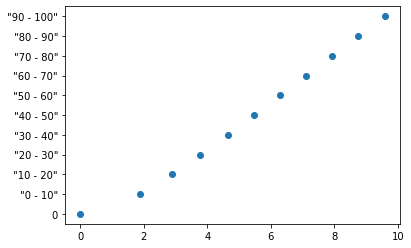
Although in the table the information in interval form is easier for the
reader to interpret, in my opinion in the plot it is better to use the whole
value at the end of the interval. That is, 0, 10, 20… So, let’s create a
variable marks that will store these marks every 10 meters so we can use it
as the vertical axis of the plot. For that, we will use the
arange
method which, according to the documentation, generates evenly spaced values in
the form [start, stop). Notice, closed at the start and open at the end. That
is why the code below has 101, so that the value 100 is included:
marks = np.arange(0, 101, 10)
marks
array([ 0, 10, 20, 30, 40, 50, 60, 70, 80, 90, 100])
Plotting again:
plt.scatter(data['2009_Berlin'], marks)
plt.show()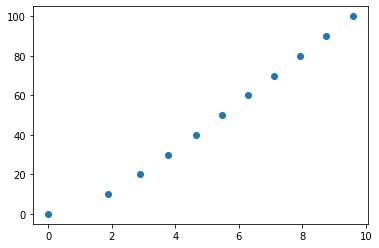
It is much easier to understand, in my opinion. But numbers alone mean nothing. It would be better to put a title on the plot and say what each axis is about. In addition, grid lines would make it easier for the reader to interpret the plot. Let’s solve each case.
Matplotlib has some predefined plot styles that can be seen here. Let’s choose one that shows grid lines:
plt.style.use('ggplot')This style will apply to the whole Notebook from the moment the cell is executed.
Now, a bit of basic Matplotlib to label the plot and the axes:
plt.scatter(data['2009_Berlin'], marks)
plt.xlabel('Time / s')
plt.ylabel('Position / m')
plt.title('Usain Bolt - Berlin World Championships - 2009')
plt.show()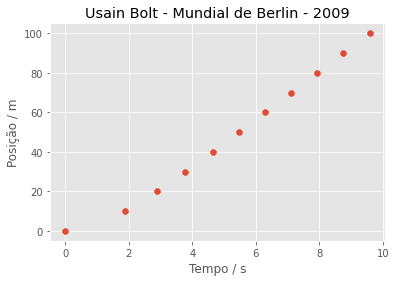
We can compare the data from the two competitions on the same plot:
plt.scatter(data['2008_Beijing'], marks, label='2008 - Beijing')
plt.scatter(data['2009_Berlin'], marks, label='2009 - Berlin')
plt.legend()
plt.xlabel('Time / s')
plt.ylabel('Position / m')
plt.title('Usain Bolt - Beijing (2008) vs Berlin (2009)')
plt.show()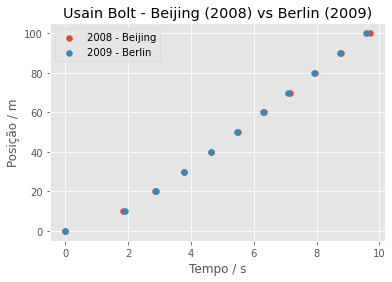
Notice that in the plot it is easier to see that Bolt started worse in the 2009 race (the stretch between 0 and 3 seconds), but recovered in the second half to break his own record.
We can also show the plots side by side. If you have trouble understanding the following code, read this article where I also present a bit of Matplotlib and explain a little how to work with axes.
# useful to change the frequency of the ticks on the axes
import matplotlib.ticker as plticker

# creating the grid
fig1, axarr = plt.subplots(nrows=1, ncols=2, figsize=(10,5), constrained_layout=True, facecolor=(1,1,1))

# assigning axes to each position of the grid
ax1 = axarr[0]
ax2 = axarr[1]

# ticks on the position axis every 10 and on the time axis every 1
position_ticks = plticker.MultipleLocator(base=10)
time_ticks = plticker.MultipleLocator(base=1)

# the plots themselves
ax1.scatter(data['2008_Beijing'], marks, label='2008 - Beijing', color='red')
ax2.scatter(data['2009_Berlin'], marks, label='2009 - Berlin', color='blue')

# naming the axes and placing the ticks at the desired interval
for ax in axarr:
    ax.set_xlabel('Time / s')
    ax.xaxis.set_major_locator(time_ticks)
    ax.set_ylabel('Position / m')
    ax.yaxis.set_major_locator(position_ticks)
    ax.legend()

# main title
fig1.suptitle('Usain Bolt - Beijing (2008) vs Berlin (2009)')
plt.show()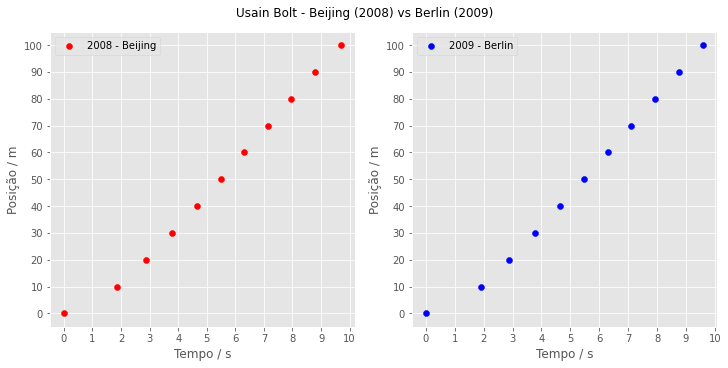
Since the position axis is the same in both plots, they could be merged:
fig2, axarr = plt.subplots(nrows=1, ncols=2, figsize=(10,5), sharey=True, facecolor=(1,1,1))

# removing horizontal space between the plots
fig2.subplots_adjust(wspace=0)

ax1 = axarr[0]
ax2 = axarr[1]

position_ticks = plticker.MultipleLocator(base=10)
time_ticks = plticker.MultipleLocator(base=1)

ax1.scatter(data['2008_Beijing'], marks, label='2008 - Beijing', color='red')
ax2.scatter(data['2009_Berlin'], marks, label='2009 - Berlin', color='blue')

ax1.set_ylabel('Position / m')
ax1.yaxis.set_major_locator(position_ticks)

for ax in axarr:
    ax.set_xlabel('Time / s')
    ax.xaxis.set_major_locator(time_ticks)
    ax.legend()

fig2.suptitle('Usain Bolt - Beijing (2008) vs Berlin (2009)')
plt.show()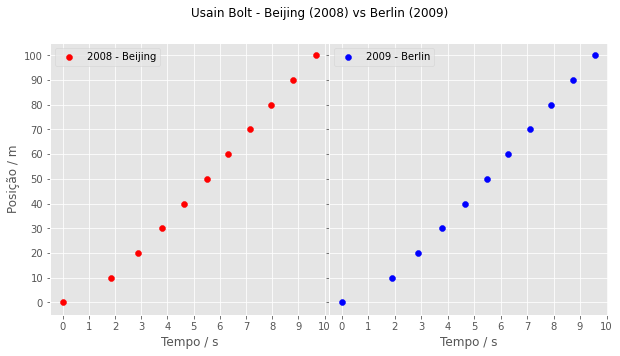
I don’t like this form very much, but I’m leaving it here for your knowledge. If you are going to put plots on web pages, remember that many people view them on a phone, so it is better to keep the axes separate to help those who zoom in to see the plots separately. Merging axes is usually a better option in work meant to be read on a computer or on paper.
How do we “connect the dots”? #
Notice that, so far, we have only plotted the points for each of Bolt’s
positions in time in each race. But how do we connect these points? Or, those
more familiar with Matplotlib must be wondering why I did not use the plot
method:
# WRONG!!
plt.xlabel('Time / s')
plt.ylabel('Position / m')
plt.title('Usain Bolt - Berlin World Championships - 2009')

plt.plot(data['2009_Berlin'], marks, marker='o')
plt.show()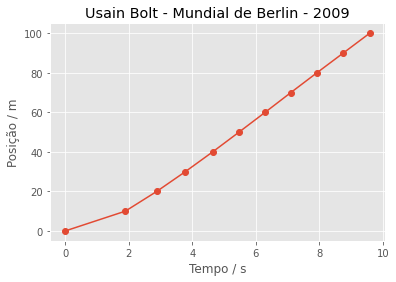
Well, it is easy to see the problem with the plot above. Did you notice what the method did? It simply connected the dots, much like what you did as a little kid in those drawing books with dots to connect to form pictures. But later, when you became a slightly smarter kid, you began to notice that, for the picture to look aesthetically better, it was not always right to connect with straight lines, was it?
So, this is not a connect-the-dots drawing, but the idea is the same. Should we connect with straight lines? And here the criterion is obviously not aesthetic but a logical and physical analysis of the situation.
Logically, Bolt did not run at constant speed throughout the race. Especially in the initial start, where he left from rest (zero speed), he certainly accelerated using all possible muscular explosion until reaching a maximum speed and tried to hold that maximum until the end of the race, but may not have managed to. By the way, let’s watch the races.
In the video of the 2008 race, it is noticeable that he was already celebrating in the final meters:
In 2009 he did not celebrate early, he just looked at the clock in the final strides:
It is to be expected that the celebration in 2008 slowed him down a bit.
And what does speed have to do with our position plot? Well, speed is the change in position over time. So, more position points would be useful for a better study of the speed. This is where the concept of interpolation comes in.
Interpolation #
We need to estimate points between the experimental points we have. The formal name for this is interpolation. Do not confuse it with regression. In a regression, we try to determine which mathematical function best describes a given set of data, not necessarily passing through points of that data. In interpolation you pass through the points.
For the purposes of this article, this definition of interpolation is enough. If you want more rigor, see this article on interpolation, this one on regression and this discussion about the difference between the two concepts.
To do the interpolation we will use the SciPy library, which has numerical routines for statistics, linear algebra, optimization problems, regression and interpolation.
The subject is so broad that a look at the documentation shows the existence of several interpolation methods. But let’s go step by step.
First we will show that the Matplotlib plot method really does perform a
linear interpolation between each pair of points. We will use the
interp1d
package from SciPy.
from scipy.interpolate import interp1dLet’s then linearly interpolate our points. To keep the article shorter, I will do it only for the 2009 data:
linear_2009_berlin = interp1d(data['2009_Berlin'], marks, kind='linear', fill_value='extrapolate')The kind='linear' is self-explanatory. The fill_value parameter decides
what to do if values outside the interpolation range are passed to the
resulting function. In this case, I asked it to extrapolate.
Now that we have our interpolating function, we need to pass x values to it, in our case time. Let’s create an array of times spaced 0.1 s apart:
time = np.arange(0, 9.7, 0.1)Plotting:
plt.xlabel('Time / s')
plt.ylabel('Position / m')
plt.title('Usain Bolt - Berlin World Championships - 2009')

plt.scatter(data['2009_Berlin'], marks, label='2009 - Berlin')
plt.plot(time, linear_2009_berlin(time), label='Linear')
plt.legend()
plt.show()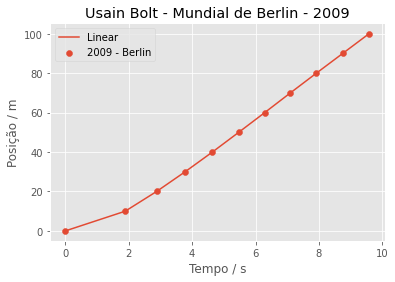
It is the same plot generated by the plot method.
Alright, we showed that a linear interpolation was indeed made between each pair of points. But what should we do then?
Here it is worth noting that there are several approaches to interpolation. One approach is to look for a polynomial that passes through all the points. Given n points, there is a polynomial of degree n-1 that interpolates them. This approach is computationally expensive and can exhibit some oscillatory artifacts at the endpoints, which is known as Runge’s phenomenon.
This interactive animation illustrates this phenomenon well for those who had trouble visualizing what is written above.
Another approach is piecewise interpolation (also called interpolation by sectioned polynomials), that is, instead of looking for a single function that passes through all the points, the points are divided into intervals. Each interval is interpolated and attached to the next one so as to obtain a continuous curve.
Splines #
Among the forms of piecewise interpolation, the so-called spline stands out. The advantage is that good interpolations are obtained with low-degree polynomials, avoiding Runge’s phenomenon.
A good starting point is cubic splines, that is, using degree 3 polynomials on each interval. It is a low degree and it guarantees continuity of the function up to its second derivative, something that will be important for us later. It is worth noting that it is a common starting point when you know little about the behavior of the data, but it is not a silver bullet, so always try to know the context of your data as much as possible.
Even among cubic splines there are different types, depending on the boundary conditions, but I will not go into that in this article. We will use a specific SciPy method for cubic splines, CubicSpline. As you can see in the linked documentation, it is possible to change the type (boundary conditions), but I will keep the default here in this article.
from scipy.interpolate import CubicSplineLet’s then get the splines for our data:
cs_2009_berlin = CubicSpline(data['2009_Berlin'], marks)
cs_2008_beijing = CubicSpline(data['2008_Beijing'], marks)
fig3, axarr = plt.subplots(nrows=1, ncols=2, figsize=(10,5), constrained_layout=True, facecolor=(1,1,1))
ax1 = axarr[0]
ax2 = axarr[1]
position_ticks = plticker.MultipleLocator(base=10)
time_ticks = plticker.MultipleLocator(base=1)
ax1.scatter(data['2008_Beijing'], marks, label='2008 - Beijing', color='red')
ax1.plot(time, cs_2008_beijing(time), label='Cubic Spline', color='red')
ax2.scatter(data['2009_Berlin'], marks, label='2009 - Berlin', color='blue')
ax2.plot(time, cs_2009_berlin(time), label='Cubic Spline', color='blue')
# naming the axes and placing the ticks at the desired interval
for ax in axarr:
ax.set_xlabel('Time / s')
ax.xaxis.set_major_locator(time_ticks)
ax.set_ylabel('Position / m')
ax.yaxis.set_major_locator(position_ticks)
ax.legend()
# main title
fig3.suptitle('Usain Bolt - Beijing (2008) vs Berlin (2009)')
plt.show()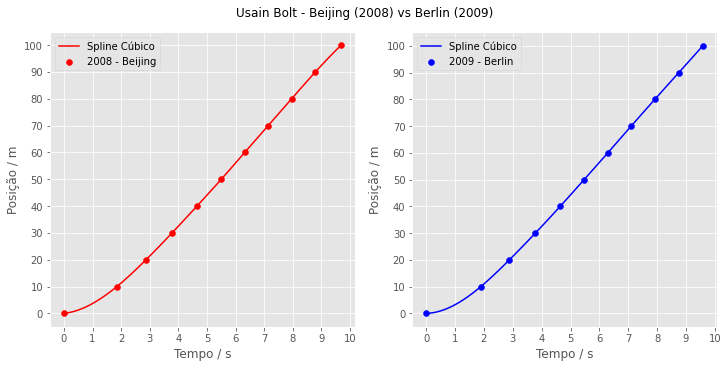
Finally, it looks like we now have a plot that lets us continue our explorations.
Getting Bolt’s speed and acceleration #
Average speed #
Now that we have what looks like a more acceptable model of how Bolt’s position varies in time, we can calculate his speed. But we need to clarify what kind of speed we want to determine. After all, if it is only the average speed, that could have been calculated already, since we know the total displacement, 100 meters, and the time the displacement lasted, the final time of the race, which is the last position of each time array:
mean_speed_beijing = 100 / data['2008_Beijing'][-1]
print(f'Mean speed in Beijing (2008): {mean_speed_beijing:.2f} m/s')

mean_speed_berlin = 100 / data['2009_Berlin'][-1]
print(f'Mean speed in Berlin (2009): {mean_speed_berlin:.2f} m/s')
Mean speed in Beijing (2008): 10.32 m/s
Mean speed in Berlin (2009): 10.44 m/s
I have already written here about the pint package which lets you deal with units and make conversions. Let’s use this package to convert the values to kilometers per hour, the unit we are most used to:
import pint

ureg = pint.UnitRegistry(fmt_locale='en_US')
Q_ = ureg.Quantity

mean_speed_beijing = Q_(mean_speed_beijing, 'm/s')
mean_speed_berlin = Q_(mean_speed_berlin, 'm/s')print(f"Mean speed in Beijing (2008): {mean_speed_beijing.to('km/hour'):.2f}")
print(f"Mean speed in Berlin (2009): {mean_speed_berlin.to('km/hour'):.2f}")Mean speed in Beijing (2008): 37.15 kilometers per hour
Mean speed in Berlin (2009): 37.58 kilometers per hour
Impressive, right?
Instantaneous speed #
But what would be more interesting is to estimate the speed at each moment of the race, the so-called instantaneous speed. After all, as we already discussed, Bolt’s speed during the races is not constant. To get such averages, at some moments Bolt certainly ran above those values. How can we get instantaneous speeds?
We will use a bit of calculus here and the fact that we now have a curve joining the experimental points. For the average speed, we took two distant points, the start and the end of the race. Now, imagine taking points closer and closer together, that is, making the time interval between the points smaller and smaller. In the limit where this interval tends to zero, we get the instantaneous speed.
It is easier to visualize with an image. Watch the animation below. In it we have a curve of some function, two marked points, A and B, and the triangle formed to obtain the change in the y-axis quantity and the x-axis one, with the help of a third point C. In the case of our plots, change in distance and in time, respectively. In the animation, the points get closer and closer. Notice that, in the limit where the points become closer, the hypotenuse of the triangle, initially a secant line of the curve, becomes a tangent line at the point of virtual meeting A. The blue line is the tangent at point A, shown precisely to show how the secant gets closer and closer to a tangent.
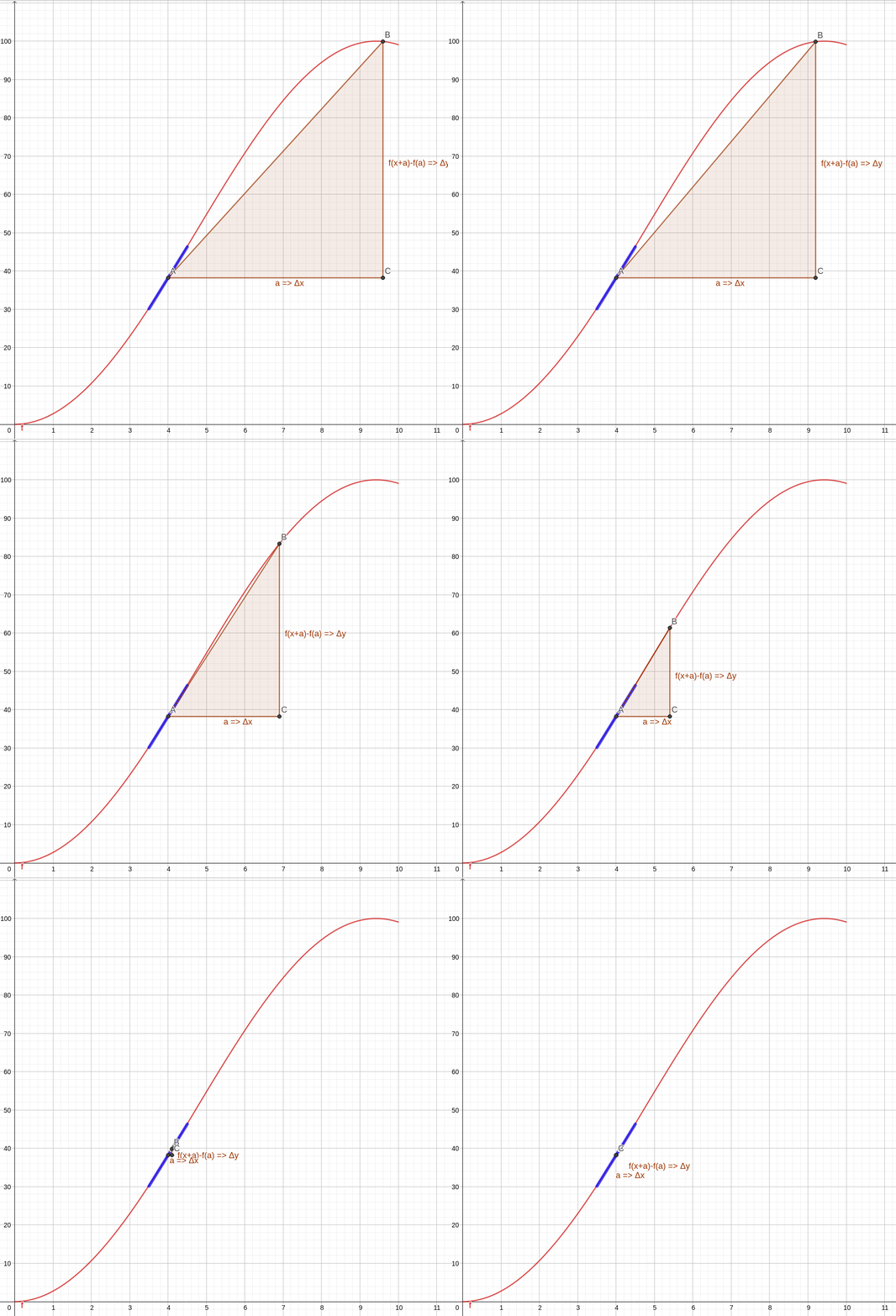
So, mathematically, the instantaneous speed at a given moment is the slope of the line tangent to the curve of the position vs time plot at the desired moment. In calculus, this is the same as saying that the instantaneous speed is the derivative of position with respect to time at a given point of the plot.
I mentioned earlier that the fact that cubic splines guarantee that the resulting curve has first and second derivatives was important. Now we know why.
The nice thing about SciPy’s CubicSpline is that it is very simple to ask for
the first derivative, just by passing the parameter 1 to the spline we
obtained. See the code below:
fig4, axarr = plt.subplots(nrows=1, ncols=2, figsize=(10,5), constrained_layout=True, facecolor=(1,1,1))

ax1 = axarr[0]
ax2 = axarr[1]

speed_ticks = plticker.MultipleLocator(base=2)
time_ticks = plticker.MultipleLocator(base=1)

ax1.plot(time, cs_2008_beijing(time, 1), label='Cubic Spline - 1st derivative', color='red')
ax2.plot(time, cs_2009_berlin(time, 1), label='Cubic Spline - 1st derivative', color='blue')

for ax in axarr:
    ax.set_xlabel('Time / s')
    ax.xaxis.set_major_locator(time_ticks)
    ax.set_ylabel('Speed / m/s')
    ax.yaxis.set_major_locator(speed_ticks)
    ax.legend()

fig4.suptitle('Speed - Usain Bolt - Beijing (2008) vs Berlin (2009)')
plt.show()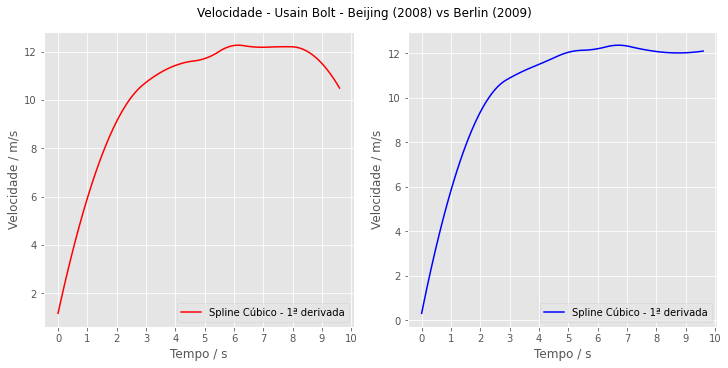
Notice that we got profiles consistent with what we expected. In the 2008 race, the speed drops near the final second of the race, when Bolt was visibly celebrating already. In 2009, the Jamaican is more consistent in speed.
We can check the maximum speeds our model gives for each case:
max_speed_2008_cs = Q_(max(cs_2008_beijing(time, 1)), 'm/s')
max_speed_2009_cs = Q_(max(cs_2009_berlin(time, 1)), 'm/s')

print(f'{max_speed_2008_cs:.2f}')
print(f'{max_speed_2009_cs:.2f}')
12.26 meters per second
12.37 meters per second
In kilometers per hour:
print(f"{max_speed_2008_cs.to('km/hour'):.2f}")
print(f"{max_speed_2009_cs.to('km/hour'):.2f}")
44.14 kilometers per hour
44.53 kilometers per hour
That is enough to get him a ticket in urban areas. Did anyone write down the license plate?
Following the logic of everything we have shown so far, we can get a curve for acceleration. Acceleration is the change in speed over time, which is the same as saying that acceleration is the first derivative of speed with respect to time. Or, the second derivative of position with respect to time. Hence:
fig5, axarr = plt.subplots(nrows=1, ncols=2, figsize=(10,5), constrained_layout=True, facecolor=(1,1,1))

ax1 = axarr[0]
ax2 = axarr[1]

speed_ticks = plticker.MultipleLocator(base=1)
time_ticks = plticker.MultipleLocator(base=1)

ax1.plot(time, cs_2008_beijing(time, 2), label='Cubic Spline - 2nd derivative', color='red')
ax2.plot(time, cs_2009_berlin(time, 2), label='Cubic Spline - 2nd derivative', color='blue')

for ax in axarr:
    ax.set_xlabel('Time / s')
    ax.xaxis.set_major_locator(time_ticks)
    ax.set_ylabel('Acceleration / m/s²')
    ax.yaxis.set_major_locator(speed_ticks)
    ax.legend()

fig5.suptitle('Acceleration - Usain Bolt - Beijing (2008) vs Berlin (2009)')
plt.show()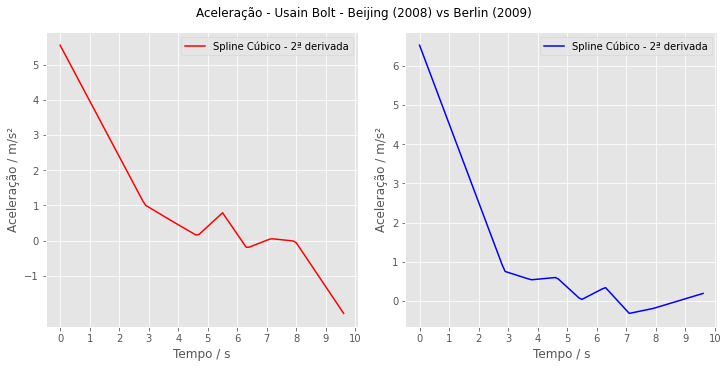
These plots are also relatively coherent: a large initial acceleration and then a positive acceleration that keeps trying to increase the speed. In 2008, a negative acceleration very close to the end, indicating deceleration near the finish line.
Although they are coherent, we need to be careful with our models. In the acceleration plots we observe abrupt changes in the profiles. This is a bit strange, remember that this is a human, there is no accelerator or brake pedal! Perhaps we should expect less abrupt variations.
Improving our model #
Obviously, many people and companies study athletes’ performance. There is even a whole field of study called sports biomechanics devoted to it. Looking at studies in the area, we see that splines are usually used, but of degree 5, not 3. The term is quintic splines, with quintic referring to degree 5. It is no coincidence that there is a company called Quintic that works precisely with sports biomechanics software. Some biomechanics books, like this one, have sections devoted to the study of degree 5 splines given their importance in the area.
So, we can check what an interpolation with fifth-degree splines would look
like. SciPy has UnivariateSpline, where we can pass a parameter to indicate
the desired degree of the spline:
from scipy.interpolate import UnivariateSplines_degree5_2008_beijing = UnivariateSpline(data['2008_Beijing'], marks, k=5)
s_degree5_2009_berlin = UnivariateSpline(data['2009_Berlin'], marks, k=5)Let’s make the plots of position, speed and acceleration versus time:
fig6, axarr = plt.subplots(nrows=1, ncols=2, figsize=(10,5), constrained_layout=True, facecolor=(1,1,1))

ax1 = axarr[0]
ax2 = axarr[1]

position_ticks = plticker.MultipleLocator(base=10)
time_ticks = plticker.MultipleLocator(base=1)

ax1.scatter(data['2008_Beijing'], marks, label='2008 - Beijing', color='red')
ax1.plot(time, s_degree5_2008_beijing(time), label='Degree 5 spline', color='red')
ax2.scatter(data['2009_Berlin'], marks, label='2009 - Berlin', color='blue')
ax2.plot(time, s_degree5_2009_berlin(time), label='Degree 5 spline', color='blue')

# naming the axes and placing the ticks at the desired interval
for ax in axarr:
    ax.set_xlabel('Time / s')
    ax.xaxis.set_major_locator(time_ticks)
    ax.set_ylabel('Position / m')
    ax.yaxis.set_major_locator(position_ticks)
    ax.legend()

# main title
fig6.suptitle('Usain Bolt - Beijing (2008) vs Berlin (2009)')
plt.show()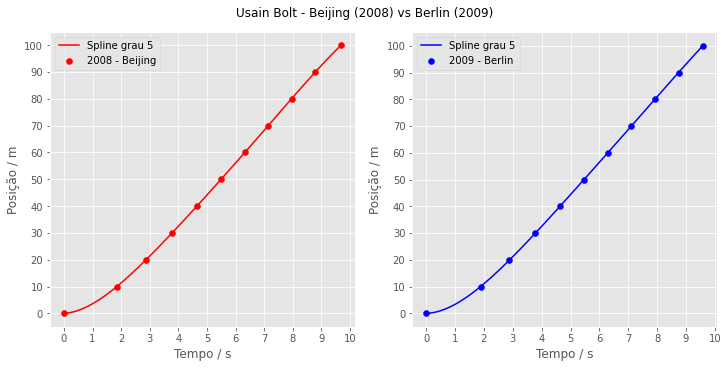
fig7, axarr = plt.subplots(nrows=1, ncols=2, figsize=(10,5), constrained_layout=True, facecolor=(1,1,1))

ax1 = axarr[0]
ax2 = axarr[1]

speed_ticks = plticker.MultipleLocator(base=2)
time_ticks = plticker.MultipleLocator(base=1)

ax1.plot(time, s_degree5_2008_beijing(time, 1), label='Degree 5 spline - 1st derivative', color='red')
ax2.plot(time, s_degree5_2009_berlin(time, 1), label='Degree 5 spline - 1st derivative', color='blue')

for ax in axarr:
    ax.set_xlabel('Time / s')
    ax.xaxis.set_major_locator(time_ticks)
    ax.set_ylabel('Speed / m/s')
    ax.yaxis.set_major_locator(speed_ticks)
    ax.legend()

fig7.suptitle('Speed - Usain Bolt - Beijing (2008) vs Berlin (2009)')
plt.show()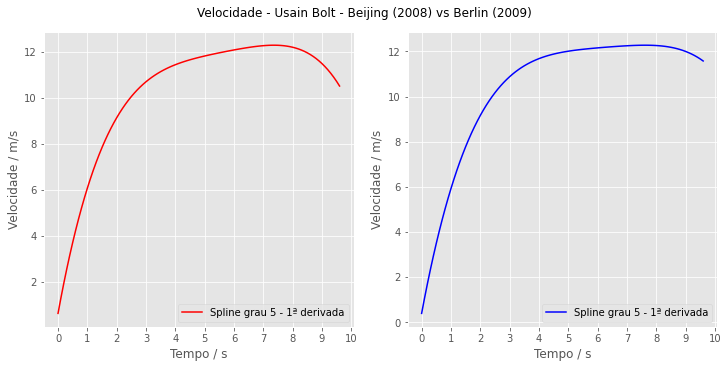
fig8, axarr = plt.subplots(nrows=1, ncols=2, figsize=(10,5), constrained_layout=True, facecolor=(1,1,1))

ax1 = axarr[0]
ax2 = axarr[1]

speed_ticks = plticker.MultipleLocator(base=1)
time_ticks = plticker.MultipleLocator(base=1)

ax1.plot(time, s_degree5_2008_beijing(time, 2), label='Degree 5 spline - 2nd derivative', color='red')
ax2.plot(time, s_degree5_2009_berlin(time, 2), label='Degree 5 spline - 2nd derivative', color='blue')

for ax in axarr:
    ax.set_xlabel('Time / s')
    ax.xaxis.set_major_locator(time_ticks)
    ax.set_ylabel('Acceleration / m/s²')
    ax.yaxis.set_major_locator(speed_ticks)
    ax.legend()

fig8.suptitle('Acceleration - Usain Bolt - Beijing (2008) vs Berlin (2009)')
plt.show()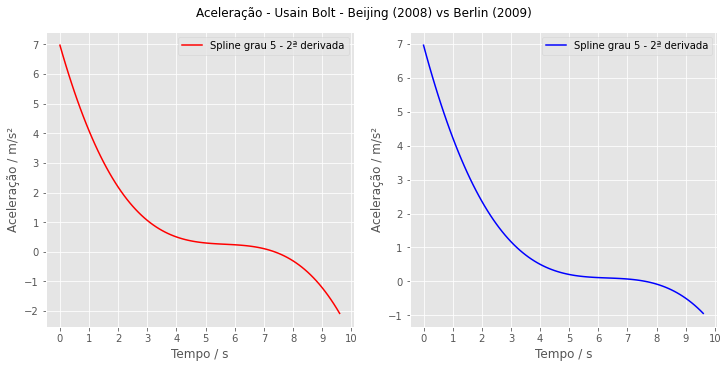
Notice that the acceleration curves are now smoother. More consistent with a gradual variation by the athlete. In fact, contrary to the previous cubic spline, the 2009 plot now shows a slight deceleration at the end.
Let’s see how the change of interpolation changed the maximum speed estimate:
max_speed_2008_s5degree = Q_(max(s_degree5_2008_beijing(time, 1)), 'm/s')
max_speed_2009_s5degree = Q_(max(s_degree5_2009_berlin(time, 1)), 'm/s')

print(f'{max_speed_2008_s5degree:.2f}')
print(f'{max_speed_2009_s5degree:.2f}')
12.28 meters per second
12.27 meters per second
Since the curves were “smoothed”, there are no longer so many maxima and minima in the plot. Did Bolt really reach a lower maximum speed in 2009 compared to 2008?
Are our models right? #
No. Models try to describe reality, they are not reality. It does not make much sense to say “right” or “wrong”, we can evaluate, based on the data we have, whether they are coherent and whether they make predictions that make sense. That is, the discussions we have been having at each step in this article. They can be, at most, as good as the input data, the famous GIGO - garbage in, garbage out. Since we only have position data every 10 meters, everything that comes out of this analysis will be limited by that input data.
In the case of the maximum speed, for example, if it was reached at some intermediate point, obviously the form of interpolation used to obtain those points will have a great effect on the result.
Getting experimental speed data #
Bolt’s performance at the 2008 Olympics, when he broke the 100 m world record for the first time, drew so much attention that it changed how the scientific community prepared for the 2009 World Championships. Many wondered what the time would be if he had not slowed down to celebrate in the final meters, and there was great interest in understanding the Jamaican’s performance.
So, special cameras, speed meters and many other pieces of equipment were used to study the biomechanics of the athletes in the competition. The resulting report is well worth reading. The details are amazing.
An interesting point of the report is that, with the speed meters used, they were able to estimate the athletes’ average speeds every 10 meters. Let’s import this data and compare it with our models:
!cat bolt_berlin_vel.csvSplits,"2009 Berlin"
0,0
"0 - 10",5.77
"10 - 20",9.99
"20 - 30",11.11
"30 - 40",11.63
"40 - 50",12.08
"50 - 60",12.20
"60 - 70",12.29
"70 - 80",12.17
"80 - 90",12.17
"90 - 100",11.96
berlin_speed_file = 'bolt_berlin_vel.csv'
berlin_speed_data = np.genfromtxt(berlin_speed_file, delimiter=',', dtype=['U10', float], names=True)
berlin_speed_data
array([('0', 0. ), ('"0 - 10"', 5.77), ('"10 - 20"', 9.99),
('"20 - 30"', 11.11), ('"30 - 40"', 11.63), ('"40 - 50"', 12.08),
('"50 - 60"', 12.2 ), ('"60 - 70"', 12.29), ('"70 - 80"', 12.17),
('"80 - 90"', 12.17), ('"90 - 100"', 11.96)],
dtype=[('Splits', '<U10'), ('2009_Berlin', '<f8')])
The maximum speed obtained was:
Q_(max(berlin_speed_data['2009_Berlin']), 'm/s')12.29 meters per second
But remember, this speed is the result of an average over each 10 meters. I will explain more about this shortly. Bolt’s real maximum speed in the race, according to the cited report, was 12.34 m/s when he had already covered 67.90 m.
Let’s compare this data with our model made with the cubic spline:
plt.xlabel('Time / s')
plt.ylabel('Speed / m/s')
plt.title('Usain Bolt - Berlin World Championships - 2009')

plt.scatter(data['2009_Berlin'], berlin_speed_data['2009_Berlin'], label='Experimental mean speed')
plt.plot(time, cs_2009_berlin(time, 1), label='Cubic spline')
plt.legend()
plt.show()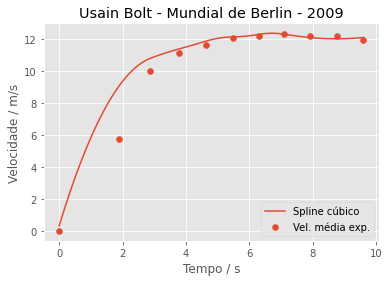
And now with the fifth-degree spline:
plt.xlabel('Time / s')
plt.ylabel('Speed / m/s')
plt.title('Usain Bolt - Berlin World Championships - 2009')

plt.scatter(data['2009_Berlin'], berlin_speed_data['2009_Berlin'], label='Experimental mean speed')
plt.plot(time, s_degree5_2009_berlin(time, 1), label='degree 5 spline')
plt.legend()
plt.show()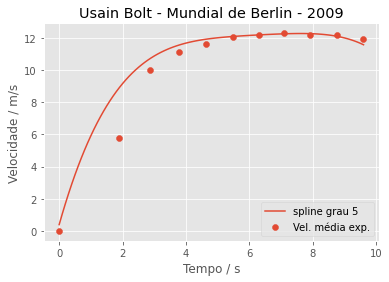
So? Any conclusion? Hard to say. Both fail in the initial times. The fifth-degree model better shows the drop in speed in the final stretch. But we must be careful about whether the comparison makes sense.
The interpolation model generates intermediate points in the position data and creates the position spline, which is then differentiated to obtain the speed curve. The speed tabulated in the report is, as already said, an average over each 10-meter interval based on the speed measurements. Let’s look at one of the plots in the report to understand:
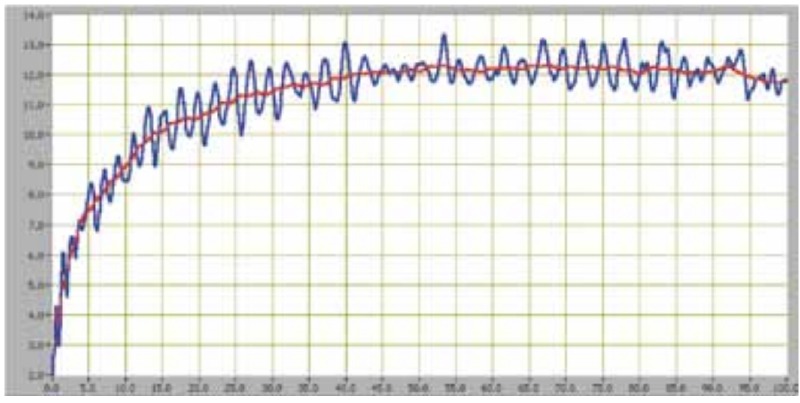
Unfortunately the resolution of the available figure is not the best. But we have speed on the vertical axis and position on the horizontal one. The blue line is the result of the experimental data from the meters and the red one is an average line of that data.
Can you understand why they used an average? The speed oscillates a lot, after all, when running there is the rhythmic impact of each foot, in each stride. In fact, the report itself and other references like this and this show that Bolt’s great edge is in his stride. Reading the papers also makes clear the experimental difficulties of measuring speed: after all, we are dealing with bodies and not points, so one must determine which position of the body will be tracked, the influence of the athlete’s reaction time on the results, especially in the first meters, among other factors.
What could be improved? #
I hope you understood that there are many factors involved and that this is just an exercise to demonstrate the Python language, the available mathematical tools and a bit of calculus and physics. But let’s end the article by thinking about how we could improve our analysis.
Look again at the speed plots we obtained. Is there anything strange? Well, I don’t know if you noticed, but the plots do not start at zero. This can be solved by forcing a boundary condition where the first derivative must be zero at the initial point. This can be done, and I already mentioned that there are different types of spline depending on the boundary conditions. Reading the documentation of the spline methods shows how this could be done. Write in the comments section if you would like an article where this is done, or if you have done it and want to show it.
But it is not that simple, since there is the athlete’s reaction time. The speed is zero until the athlete starts moving. It is up to you to consider whether this will affect the analysis much or not. And what it would be like to implement this. Oh, and are you going to try to discount the influence of the wind or not?
Another approach is to start from mathematical models previously defined in the literature. I recommend reading this paper and also this one. That way, the boundary conditions could be the equations proposed in these papers and it would be up to us to check whether they represent the situations well or not.
Finally, remember above where I wrote about the polynomial interpolation method? When you look for a polynomial that passes through all the points? Other people have already done studies along these lines: as here and here. See the results and compare them with the approach we used. Also try to reproduce the studies and draw your own conclusions.
Conclusion #
Phew, this article was not easy to write. A lot of reading, math, sports, physics and Python. But the goal was to show the mathematical tools available for the language using a real problem. I believe that is much more productive than showing the tired examples that every book and site has.
And using a real problem also lets us discuss the limitations of methods and models and how to analyze them critically. Unfortunately, I see some problems in the way they are taught and used today. Namely:
- many confuse model with reality;
- tools are applied in contexts where they do not apply;
- related to the previous item, there are many users of methods and models, but few analysts and people who understand them;
- real cases are rarely used in teaching, so critical analysis is not exercised. Textbook data is always so pretty, right?
- the media’s popularization/interpretation of scientific studies and of model results is deplorable.
The consequence of all this relates to what we are living through in this year of 2020, when I write this article. After all, a good part of what we lived through this year was a consequence of predictions made from models at the beginning of the year. Remember (in Portuguese)? Obviously the disease is serious and must not be neglected, that is not the point. But was every precaution taken in the model and in its software? It seems not (in Portuguese). Did they think about the political consequences and about people’s lives and freedom? Did the predictions come true? Food for thought.
See you next time.


