

You may have been in this situation: you are writing a paper or doing research and find a figure that presents interesting data, but it is low quality or you would like to add or remove elements from it. However, the data that originated it are not available. How do you get out of this? That is what we will see in today’s article.
If you prefer video, click the player below (in Portuguese). The full article follows the video.
Original figure #
When I was preparing the article about the case of the airplane that ran out of fuel in mid-flight, I found a US Department of Defense document about aircraft fuels. I was looking for it because, as I described in the article, fuel density varies with temperature and the whole problem was caused by an error in the unit used for the density value. Originally, I planned to include a chart showing how density varies with temperature, but later I thought it would not add much to the story and left it out. But now I will use the chart here to show how we can obtain data from figures and considerably improve their presentation.
Let us start by looking at the original figure from the Department of Defense document:
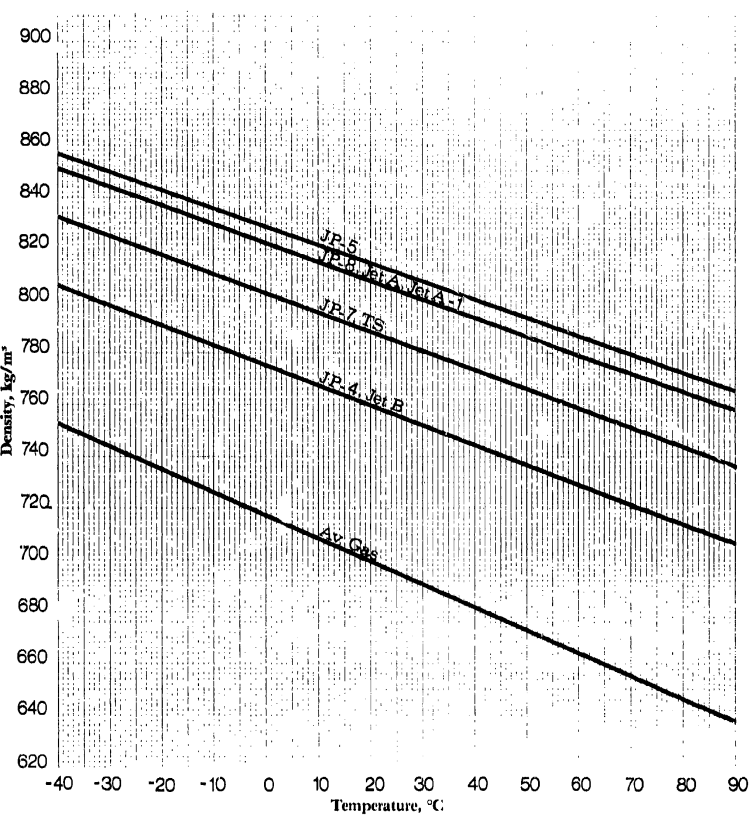
Admittedly, the quality is very poor. The original material, which was already old (the document is from 1983), was scanned not very carefully, making the chart’s grid lines hard to see. Obviously, without such lines, the usability of the chart is reduced. The document does not provide a table of values. Had such a table been provided, rebuilding the chart would be easier: any spreadsheet could be used for that. Since no such table is available, we need to extract the data directly from the chart.
Obviously, one way to do this would be manually. That is, reading a few points of each line of the chart and rebuilding the lines from those points. The first problem with this approach is that it is slow. The second is that it is more error-prone, especially because of how hard it is to read some regions of the figure. Finally, this approach is even reasonable for this chart, since there is clearly a linear profile, making it easy to extrapolate the general behavior of each data set from a few points. However, if the behavior followed another profile, more points would be needed for a more accurate reconstruction. Thus, a software-based approach proves more viable and more cost-effective.
The Engauge Digitizer program #
Engauge Digitizer is a free, open-source program designed to recover data from image files. The data can then be saved and used as input to programs that build charts. The following figure, taken from the project’s website, shows exactly the process:
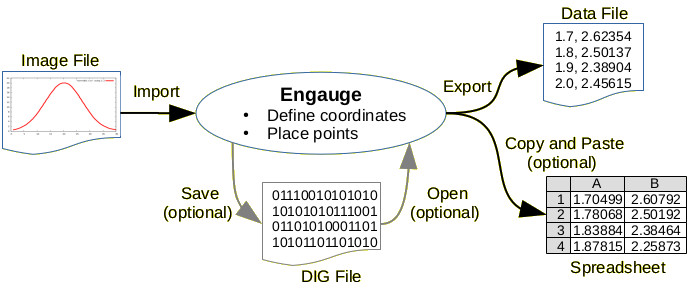
The program is cross-platform, available in the app stores of most Linux distributions and on the Mac. Installers for those systems and also for Windows are available in the project repository.
Using the program is quite simple: you just import the figure and follow a few steps. It is easier to explain with a video. At the top of this article there is the full video (in Portuguese).
Redoing the chart with Python #
Now that we have a file with the data, we can import it into any spreadsheet program or use a programming language. Since I like having more creative freedom, I will use Python to rebuild the chart. Below is a Jupyter Notebook with the steps I followed. If you want to download the Notebook, click here to go to Ciência Programada’s GitHub and download the file.
First, let us import the libraries we will use:
import numpy as np
from scipy.stats import linregress
import matplotlib.pyplot as plt
The role of each library will be shown throughout the file.
Let us save the path to the data file in a variable. This makes it easier to change the code if the file is later moved to another folder:
data_file = 'dados_combustivel.csv'numpy has the genfromtxt method, which extracts data from text files. The delimiter parameter specifies the delimiter used in the file, which here is a comma since it is a csv format; the names parameter lets us set the names of the data columns. The value True means to use the line right above the numeric data in the source file:
data = np.genfromtxt(data_file, delimiter=',', names=True)We can view the available columns. Each data set can be obtained from the variable by column name with the syntax data[column_name]:
data.dtype.names('x', 'JP5', 'JetA', 'JP7', 'JetB', 'AvGas')
Engauge Digitizer exported points from our source chart. We can then plot a first draft of the chart with each set of points using Matplotlib’s scatter method to get an idea of the general behavior of the data:
for name in data.dtype.names[1:]:
    plt.scatter(data['x'], data[name], label=name)
plt.legend()
plt.show()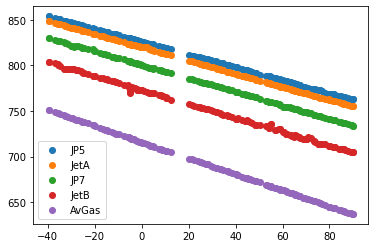
It is quite noticeable that each data set has linear behavior. This is where the linregress method imported from the SciPy library comes in.
Let us take a look, for example, at the linear regression data for the data set of the JetA fuel:
linregress(data['x'], data['JetA'])LinregressResult(slope=-0.7221033469533403, intercept=819.8747195466843, rvalue=-0.9999442604546929, pvalue=0.0, stderr=0.0005972008546052884)
Note that the method returns five values that describe the regression: the slope of the line, the intercept, the R value (correlation coefficient), the P value, and the standard error. A detailed description of the meaning of each parameter can be found in the documentation. Between us, what matters is checking that the R value, or more specifically the square of R, is as close to 1 as possible and that the standard error is low, so that we can really consider the data to behave linearly.
Let us check each data set with a loop:
for name in data.dtype.names[1:]:
    regression = linregress(data['x'], data[name])
    print(f"Regression for {name}: R^2={regression.rvalue**2:.4f} and stderr={regression.stderr:.4f}")
Regression for JP5: R^2=0.9998 and stderr=0.0007
Regression for JetA: R^2=0.9999 and stderr=0.0006
Regression for JP7: R^2=0.9998 and stderr=0.0008
Regression for JetB: R^2=0.9981 and stderr=0.0026
Regression for AvGas: R^2=0.9999 and stderr=0.0007
Therefore, we can see that treating each set as linear is quite reasonable.
We can then plot the line resulting from the regression of each set and generate our final chart. Let us use one of Matplotlib’s predefined chart styles, which can be seen here. And let us also add titles to the axes and to the chart:
# range of temperature values for the chart
temperature = np.arange(-40, 100, 10)

plt.style.use('ggplot')

for name in data.dtype.names[1:]:
    regression = linregress(data['x'], data[name])
    plt.plot(temperature, regression.slope * temperature + regression.intercept, label=name)
    plt.legend()

plt.xlabel('Temperature / °C')
plt.ylabel('Density / kg/m³')
plt.title('Aircraft fuel density vs temperature')
plt.show()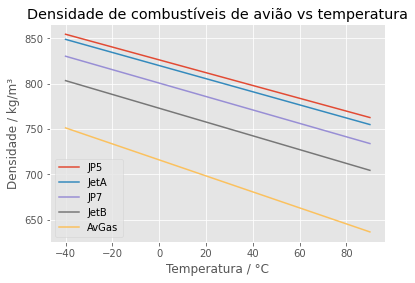
It is a much more presentable chart than the original, do you agree? And many other customizations can be made at the user’s discretion. Below is a more elaborate chart, using a few more Matplotlib features:
# changing the tick frequency on the axes
import matplotlib.ticker as plticker
density_ticks = plticker.MultipleLocator(base=20)
temperature_ticks = plticker.MultipleLocator(base=10)

plt.style.use('ggplot')

fig, ax = plt.subplots(figsize=(6, 8), constrained_layout=True)

for name in data.dtype.names[1:]:
    regression = linregress(data['x'], data[name])
    ax.plot(temperature, regression.slope * temperature + regression.intercept,
            label=name, linewidth=5)
    ax.legend(fontsize=14)

ax.xaxis.set_major_locator(temperature_ticks)
ax.yaxis.set_major_locator(density_ticks)
ax.tick_params(labelsize=13)
ax.minorticks_on()
ax.grid(which='minor', linestyle=':', linewidth='1.0', color='white')

ax.set_xlabel('Temperature / °C', fontsize=15)
ax.set_ylabel('Density / kg/m³', fontsize=15)
ax.set_title('Aircraft fuel density vs temperature', fontsize=17)

plt.show()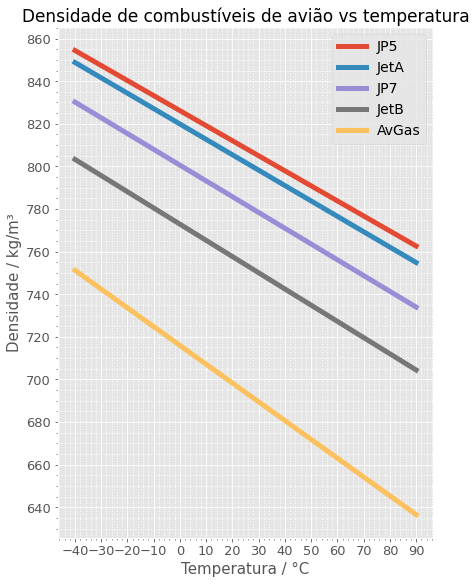
Conclusion #
Engauge Digitizer is a very useful tool, especially for those who frequently deal with charts and do not always have the original data available. It helps everyone from those who simply want a more presentable chart for a school assignment to professors and researchers, or even organizations that deal with large image databases. Its power, combined with a robust graphical tool such as Matplotlib, makes it possible to turn poor-quality charts into high-resolution, much more informative images.
See you next time.


