
In this article we will see how to make plots with SymPy and Matplotlib.
When people talk about SymPy, we usually focus on solving mathematical problems. But many forget that the library has some basic features for building plots, which we will see in this article.
Creating an equation #
To illustrate, I will use the ideal gas law in this article. The famous PV=nRT from high school. Let’s see how to make plots that show how the volume of an ideal gas depends on pressure and on temperature.
Let’s start by importing the libraries we will use throughout the article. The role of each one will be explained along the way:
import sympy
from sympy.plotting import plot, plot3d
import numpy as np
import matplotlib.pyplot as plt
from matplotlib import animation

# setup for better outputs in the article, can be ignored
sympy.init_printing(use_latex='png', scale=1.0, order='grlex',
                    forecolor='Black', backcolor='White',)
Just for reference, the SymPy version in this article is 1.9, the latest at the time of writing.
sympy.__version__'1.9'
In case you don’t remember, the gas constant R has several possible values depending on the system of units used. You have most likely used the value “0.082” many times in your life, since it is the value associated with the units atmosphere (for pressure) and liters (for volume), which are the most common in Brazil for these quantities. The temperature is expressed in Kelvin. In fact, this is an approximate value that makes calculations easier by hand or on simple calculators. Here, we don’t need to approximate, so let’s put in all the significant digits:
gas_constant = 0.082057366080960 # atm L / (mol K)In fact, we should not approximate. Never make approximations in intermediate steps, it will only lead to propagated errors in your calculations. But that is a subject for another article. Just take advantage of having a computer that handles numbers very well and don’t approximate. If you need a “well-behaved” number for an answer, round only at the end.
Back to the point, let’s now create symbols for each quantity and create our equation. If you have questions about this step, see the article about equations with SymPy:
P, V, T, R, n = sympy.symbols('P V T R n', positive=True)

ideal_gas_law = sympy.Eq(P*V, n*R*T)
ideal_gas_law
\(\displaystyle P V = R T n\)
Making the role of each symbol clear:
- P: pressure in atmospheres (atm)
- V: volume in liters
- n: amount of substance in mol
- R: gas constant in atm.l/(mol.K)
- T: temperature in Kelvin
Let’s solve this equation for the volume V:
sympy.solve(ideal_gas_law, V)\(\displaystyle \left[ \frac{R T n}{P}\right]\)
Note that the result comes out as a list with a single element, which is the expression resulting from isolating V on the left-hand side of the equality. Let’s assign this expression to a variable:
volume = sympy.solve(ideal_gas_law, V)[0]  # position 0 (first) of the list
volume
\(\displaystyle \frac{R T n}{P}\)
There are three variables in the expression. Put another way, V=f(P, n,T), volume is a function of pressure, amount of substance, and temperature. Let’s start simple, obtaining an expression for constant temperature and amount of substance. To do that, we substitute 1 mol and 25 °C (298.15 K) into the expression:
molar_volume_25_celsius = volume.subs({R: gas_constant, n: 1, T: 298.15})
molar_volume_25_celsius
\(\displaystyle \frac{24.4654036970382}{P}\)
Now we are able to make a plot showing how the volume V changes with variations in the pressure P, keeping n and T constant at 1 mol and 298.15 K, respectively.
Plots with SymPy #
At the beginning of the article, we saw that we imported SymPy’s plot method.
Let’s pass the expression we obtained for the volume as an argument and indicate
which variable to use, in this case P:
plot(molar_volume_25_celsius, P)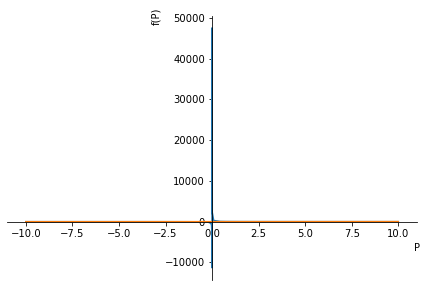
There are some interesting observations about the generated plot:
- Those who are more used to Python must have recognized the “look” of Matplotlib in the plot. And, indeed, SymPy uses Matplotlib as the backend for plots
- Notice how the axes were named. The abscissa (the “x axis”) was named
P, the variable indicated when calling the
plotmethod. The ordinate (“y axis”) was named f(P), that is, indicating that this axis is a function of P. Since it is a mathematical library, SymPy assumes that y = f(x) and makes this explicit in the plot. It is possible to change these labels, but it is still important to note the default representation. - Another characteristic of a mathematical library, the plot is centered at the origin (0, 0). This is not the Matplotlib default, it is a modification made by SymPy.
- But, perhaps, what draws the most attention is the fact that there is a part
of the plot at negative values. Obviously, physically this makes no sense since
we are dealing with pressure and volume. In fact, when creating the symbols at
the beginning we set
positive = True. So, why did a plot appear in the 3rd quadrant?
In the documentation of the plot
method
we see that, by default, the range of domain values considered is (-10, 10),
as can be seen in the plot. Therefore, regardless of what we asked SymPy to
assume when creating the symbols, the plot will be generated for the range
requested by Matplotlib. But that is a practical explanation.
In fact, we must keep in mind that all these assumptions we ask SymPy to make, for example, that a given symbol has only positive values, are only valid within the context of SymPy operations. SymPy is a symbolic abstraction layer over plain Python. When it interacts with other libraries, as in the case of Matplotlib, there is no way to guarantee behaviors consistent with the assumptions. The assumptions are valid within SymPy operations and are important as we saw in the article about logarithms. However, be careful with your expectations when interacting with other libraries.
With these caveats made, let’s restrict the domain to a range that makes more sense. To do that, we just pass our variable and the minimum and maximum values in a tuple:
plot(molar_volume_25_celsius, (P, 0.1, 4))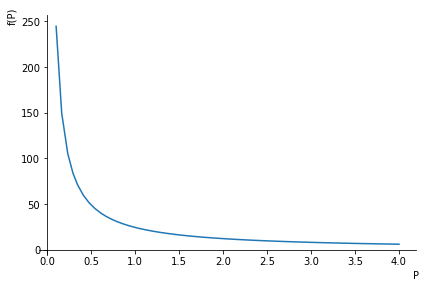
We already have the characteristic isotherm profile of an ideal gas. If we want
to restrict the plot even further, to a range of smaller volume values, we just
pass the desired minimum and maximum values for the y axis to the ylim
argument in the form of a tuple:
plot(molar_volume_25_celsius, (P, 0.1, 4), ylim=(0, 80))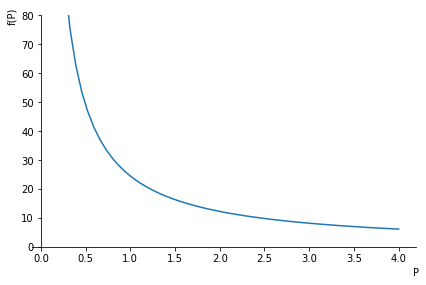
And what if we want another curve in the plot? For example, for 100 °C (373.15 K)? Simple, just create the expression and pass it to the plot method:
molar_volume_100_celsius = volume.subs({R: gas_constant, n: 1, T: 373.15})

plot(molar_volume_25_celsius,
     molar_volume_100_celsius,
     (P, 0.1, 4),
     ylim=(0, 80))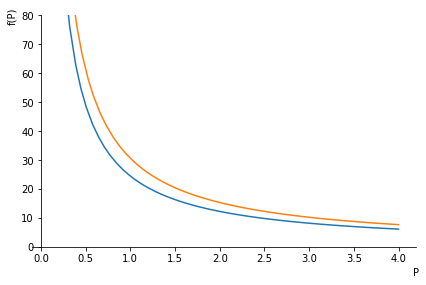
We see that a second curve was created, for the new temperature. We could keep adding curves following the procedure above and, of course, improve the presentation of the plot by identifying the curves. However, it will soon become evident that interacting with Matplotlib through SymPy is quite bureaucratic and limited. For example, it makes little sense to create one expression per curve if the goal is, say, to show curves for 5 temperatures in the plot. And this is not a criticism of SymPy, handling plots is simply not the focus of the library, they already went a long way in providing a simplified way to generate plots. The point is that more advanced customizations become much simpler if we extract the data from the SymPy objects and pass it directly to Matplotlib.
Plots with Matplotlib #
Let’s unlock the unlimited power of customization of Matplotlib.

Thanks, Palpatine, we’re going to the Matplotlib side of the force… Let’s see how this works.
The first step is to ask the plot method not to display the plot itself:
plot(molar_volume_25_celsius, (P, 0.1, 4), ylim=(0, 80), show=False)<sympy.plotting.plot.Plot at 0x7f46a254fa00>
Note that only a Plot object at a memory address is generated. So, we can
assign this object to a variable. Let’s create, then, a variable with the super
creative name of p:
p = plot(molar_volume_25_celsius, (P, 0.1, 4), ylim=(0, 80), show=False)

p
<sympy.plotting.plot.Plot at 0x7f46a26c3280>
We can order the plot to be displayed from this variable:
p.show()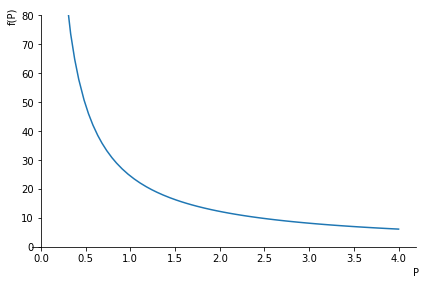
Now, to understand the next steps, let’s understand in a very simplified way the composition of a Matplotlib plot. When you look at a plot like the one above, think of it as:
- a blank rectangle, which is the base of the figure
- a system of axes on top of this rectangle
- the system of axes has the line element, the labels of each axis, the values shown on the axis, and everything else we see
- if desired, new axes systems can be added to the same base figure
- and, if desired, new lines (or points) can be added to a given axis
This is basically how plots are created with Matplotlib. More details can be seen in the Matplotlib API documentation and in more rigorous language. The goal here is to understand that we can decompose a plot into more fundamental elements (objects in programming).
Thus, the object associated with our variable p is, in fact, a container! It
has all these requirements to create a Matplotlib plot. Let’s see all the public
attributes and methods associated with this object:
[x for x in dir(p) if not x.startswith('_')]['annotations',
'append',
'aspect_ratio',
'autoscale',
'axis',
'axis_center',
'backend',
'extend',
'fill',
'legend',
'margin',
'markers',
'rectangles',
'save',
'show',
'size',
'title',
'xlabel',
'xlim',
'xscale',
'ylabel',
'ylim',
'yscale',
'zlabel']
Well, it’s all there. The information about the axes, the labels, (almost) everything we talked about earlier. For example, let’s check the y axis label and the limit we requested (from 0 to 80):
p.ylabel, p.ylim\(\displaystyle \left( f{\left(P \right)}, \ \left( 0.0, \ 80.0\right)\right)\)
Great! Now, there are two “suspicious” methods in this list: append and
extend. They are two methods characteristic of
lists,
associated with the ability to grow a list by adding more elements. So… the
object p was created with a list structure. And what will the content of this
list be? Let’s look at the first position of the list:
p[0]<sympy.plotting.plot.LineOver1DRangeSeries at 0x7f46a2620a00>
Bingo! A LineOver1DRangeSeries object, that is, spelled out, a line over a
range of one-dimensional values. Translating, our curve. And, since there is
only one curve, it makes no sense to have an element at the next position,
right?
p[1]---------------------------------------------------------------------------
IndexError Traceback (most recent call last)
/tmp/ipykernel_8614/3900177224.py in <module>
----> 1 p[1]
/opt/anaconda/lib/python3.8/site-packages/sympy/plotting/plot.py in __getitem__(self, index)
249
250 def __getitem__(self, index):
--> 251 return self._series[index]
252
IndexError: list index out of range
Right! So, we already know that new curves are new elements in this list that is
the object p. And what public attributes and methods are available for each
element of this list?
[x for x in dir(p[0]) if not x.startswith('_')]['adaptive',
'depth',
'end',
'expr',
'get_color_array',
'get_data',
'get_points',
'get_segments',
'is_2Dline',
'is_3D',
'is_3Dline',
'is_3Dsurface',
'is_contour',
'is_implicit',
'is_line',
'is_parametric',
'label',
'line_color',
'nb_of_points',
'only_integers',
'start',
'steps',
'var',
'xscale']
We see, from the names, that they are information about the curve itself: its
color, number of points, and the points themselves. And the points are what we
want, to be able to build our own plots directly with Matplotlib. We can get the
points with the get_points method (suggestive, isn’t it?):
# the number of values is quite long, so I used a bit of NumPy here
# just to show the first three and the last three values of the x axis
# and of the y axis in a friendlier way. It is not needed to get the
# points themselves, it is only a presentation device for the article

with np.printoptions(threshold=10, precision=3, suppress=True):
    display(np.array(p[0].get_points()))
array([[ 0.1 , 0.167, 0.242, ..., 3.89 , 3.943, 4. ],
[244.654, 146.637, 101.282, ..., 6.29 , 6.204, 6.116]])
As we can see, the “x axis” values are in the first list, from 0.1 to 4, as requested when calling the plot method, and the associated y values are in the second list. Let’s see the number of elements in each list:
len(p[0].get_points()[0]), len(p[0].get_points()[1])\(\displaystyle \left( 65, \ 65\right)\)
The number of points is estimated by SymPy itself. It is possible to customize it, but honestly I never found it necessary, the amounts calculated by SymPy have always given me well-presented plots.
Let’s understand the structure of the object generated by get_points. We have
already seen that there are two lists inside the object, but let’s look at the
type of the object:
type(p[0].get_points())tuple
So, we see that it is a tuple and, inside the tuple, there is a list for the x values and another for the y values. We already know everything we need. Let’s assign a variable to this object, create a Matplotlib figure, and make our plot:
data = p[0].get_points()

fig, ax = plt.subplots(figsize=(8, 6), facecolor=(1, 1, 1))

ax.plot(*data)  # unpack the tuple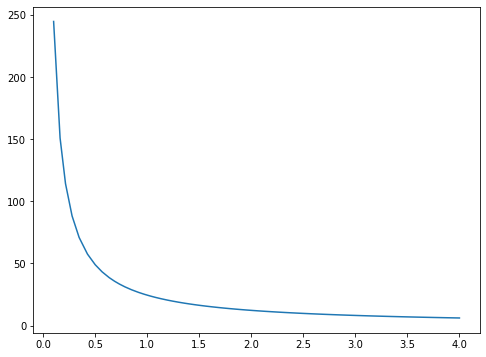
OK, we got more or less to what we already had… so what?
So now we can automate the whole creation process. Let’s generate a plot with 6
temperatures. If we were to do it via SymPy, it would be a rather tedious
procedure, creating each expression and passing them one by one to SymPy’s
plot method. Now we can do it more quickly, since we know how to extract the
data from SymPy.
Let’s start by creating our temperature values. Nobody deserves to do Kelvin math in their head, so let’s think of round values in Celsius and let Python do the conversion for us:
temperatures_celsius = (-100, 0, 25, 100, 500, 1000)
temperatures_kelvin = tuple(t + 273.15 for t in temperatures_celsius)
Now, think. We want six curves, we need the data for each one. Let’s create an
empty list to store this data. And this data needs to be extracted from SymPy
expressions with get_points. We could create each expression and extract it,
but we don’t actually need to create one expression per temperature, we can
reuse the same variable, there is no interest in having objects for each
expression. Basically, we describe a for loop:
plots = []

for temperature in temperatures_kelvin:
    expr = volume.subs({R: gas_constant, n: 1, T: temperature})
    p = plot(expr, (P, 0.1, 4), show=False)
    data = p[0].get_points()
    plots.append(data)
Note that inside the loop we did the same procedure described earlier in the
article. But we extracted the data on each pass and appended (append) it to
our list. So, our list has 6 data sets, one set of (x, y) points, or rather
(P, V), for each temperature:
len(plots)\(\displaystyle 6\)
Now it’s time to use the power of Matplotlib. Following the composition we described earlier, let’s create a figure and attach axes systems to this figure, each system with one of the curves. And, of course, label the figure and each axis, and add a legend. Full service:
fig, ax = plt.subplots(figsize=(12, 8), facecolor=(1, 1, 1))

for i, p in enumerate(plots):
    ax.plot(*p, label=f'T = {temperatures_celsius[i]} °C', linewidth=3)
    ax.set_ylim(0, 80)
    ax.legend(fontsize=14)
    ax.set_ylabel('Volume / liter', fontsize=16)
    ax.set_xlabel('Pressure / atm', fontsize=16)

ax.set_title("Molar volume - ideal gas", fontsize=18)

plt.show()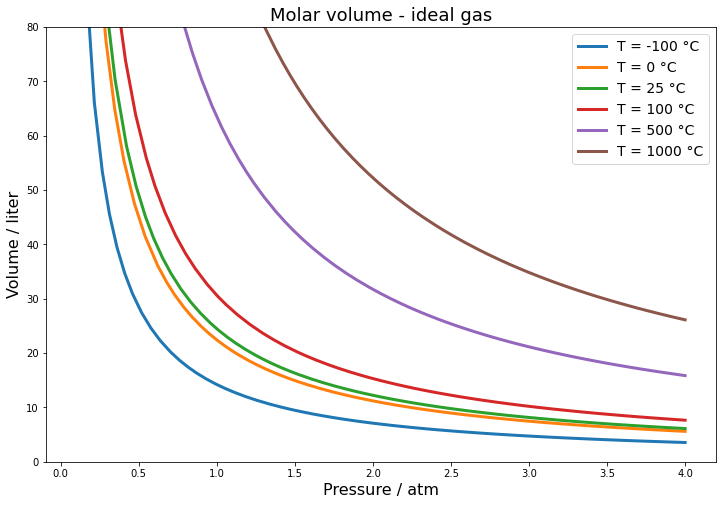
So satisfying! The procedure can now be extracted to a script, for example, and reproduced for any other case, not necessarily with the ideal gas law but with any other equation with only one variable.
But 2D is for the weak, we want it in 3D!
As the meme says:

3D plots #
Let’s recall objects created at the very beginning:
ideal_gas_law\(\displaystyle P V = R T n\)
volume\(\displaystyle \frac{R T n}{P}\)
At the beginning, we fixed the temperatures at some values and generated 2D plots, which are isotherms. But, now, we want the temperature to be one of the axes of the plot. So, the only variable we will fix is the amount of substance in mol, at the value of 1 mol:
molar_volume = volume.subs({R: gas_constant, n: 1})
molar_volume
\(\displaystyle \frac{0.08205736608096 T}{P}\)
At the beginning, we imported SymPy’s plot3d method. The way to use it is very
similar to what we saw for plot, except that now we will pass ranges not only
for the pressure but also for the temperature:
plot3d(molar_volume, (P, 0.1, 4), (T, 0, 1000))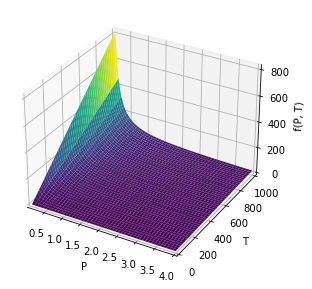
Thus, we generated a PVT surface with pressure in the range between 0.1 and 4 atm and temperature in the range from 0 to 1000 K. All the two-dimensional plots you have seen when studying gases are nothing more than slices through planes of surfaces like this one, keeping something constant: the temperature (isotherm plot), the pressure (isobar plot), or the volume (isochore plot).
Note that SymPy already tries to add some touches to the plot, for example, using a color gradient on the surface, indicating larger values of the z axis with warmer colors, in our case the volume axis. But, we want even more power of customization, so let’s extract the data. The procedure is analogous to the one seen before:
p = plot3d(molar_volume, (P, 0.1, 4), (T, 0, 1000), show=False)

p
<sympy.plotting.plot.Plot at 0x7f46a06d8d30>
p[0]<sympy.plotting.plot.SurfaceOver2DRangeSeries at 0x7f46a06d8f40>
Note that the object is now different, it is SurfaceOver2DRangeSeries,
literally a surface over a range of values in two dimensions (P and T). It makes
total sense in our context. Let’s look at the public attributes and methods
associated with this object:
[x for x in dir(p[0]) if not x.startswith('_')]['end_x',
'end_y',
'expr',
'get_color_array',
'get_meshes',
'is_2Dline',
'is_3D',
'is_3Dline',
'is_3Dsurface',
'is_contour',
'is_implicit',
'is_line',
'is_parametric',
'nb_of_points_x',
'nb_of_points_y',
'start_x',
'start_y',
'surface_color',
'var_x',
'var_y']
Note that there is no get_points, and it makes sense that there isn’t. When we
deal with plots of surfaces in 3 dimensions, what we have are pairs of
coordinates (x, y) associated with values in z. These pairs build what is
usually called a mesh grid. That is why there is a method in NumPy to create
meshgrids
that you will see in several examples in the Matplotlib documentation on
generating 3D
surfaces.
Thus, we recognize that what we want is provided by get_meshes:
# the number of values is quite long, so I used a bit of NumPy here
# just to show the first three and the last three values of the matrices
# in a friendlier way. It is not needed to get the
# values themselves, it is only a presentation device for the article

with np.printoptions(threshold=10, precision=3, suppress=True, linewidth=100):
    display(np.array(p[0].get_meshes()))
array([[[ 0.1 , 0.18 , 0.259, ..., 3.841, 3.92 , 4. ],
[ 0.1 , 0.18 , 0.259, ..., 3.841, 3.92 , 4. ],
[ 0.1 , 0.18 , 0.259, ..., 3.841, 3.92 , 4. ],
...,
[ 0.1 , 0.18 , 0.259, ..., 3.841, 3.92 , 4. ],
[ 0.1 , 0.18 , 0.259, ..., 3.841, 3.92 , 4. ],
[ 0.1 , 0.18 , 0.259, ..., 3.841, 3.92 , 4. ]],
[[ 0. , 0. , 0. , ..., 0. , 0. , 0. ],
[ 20.408, 20.408, 20.408, ..., 20.408, 20.408, 20.408],
[ 40.816, 40.816, 40.816, ..., 40.816, 40.816, 40.816],
...,
[ 959.184, 959.184, 959.184, ..., 959.184, 959.184, 959.184],
[ 979.592, 979.592, 979.592, ..., 979.592, 979.592, 979.592],
[1000. , 1000. , 1000. , ..., 1000. , 1000. , 1000. ]],
[[ 0. , 0. , 0. , ..., 0. , 0. , 0. ],
[ 16.746, 9.325, 6.461, ..., 0.436, 0.427, 0.419],
[ 33.493, 18.649, 12.922, ..., 0.872, 0.854, 0.837],
...,
[ 787.081, 438.261, 303.677, ..., 20.493, 20.077, 19.677],
[ 803.827, 447.586, 310.138, ..., 20.929, 20.504, 20.096],
[ 820.574, 456.91 , 316.599, ..., 21.365, 20.931, 20.514]]])
Let’s assign a variable:
data = p[0].get_meshes()Now we have total control over what to do. For example, didn’t quite understand the mesh part? Let’s make a plot of just points with the data:
fig = plt.figure(figsize=(12, 8), facecolor=(1, 1, 1))
ax = fig.add_subplot(111, projection='3d')

ax.scatter(*data)
ax.set_xlabel('Pressure / atm')
ax.set_ylabel('Temperature / K')
ax.set_zlabel('Volume / l')

plt.show()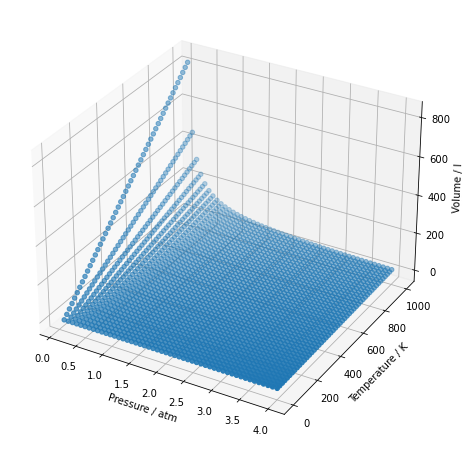
See how “lines” are created, sequential values in the pressure x temperature
plane, both lines parallel to the pressure axis and parallel to the temperature
axis. Notice, in the representation shown above of the values provided by
get_meshes, how values repeat. That is the grid (mesh) of paired values
(P, T). And for each pair we have an associated volume value V shown on the
vertical axis. I hope that helped you understand it better.
Personally, the representation I find most useful is the “wireframe”:
fig = plt.figure(figsize=(12, 8), facecolor=(1, 1, 1))
ax = fig.add_subplot(111, projection='3d')

ax.plot_wireframe(*data, rstride=5, cstride=5)
ax.set_xlabel('Pressure / atm')
ax.set_ylabel('Temperature / K')
ax.set_zlabel('Volume / l')

plt.show()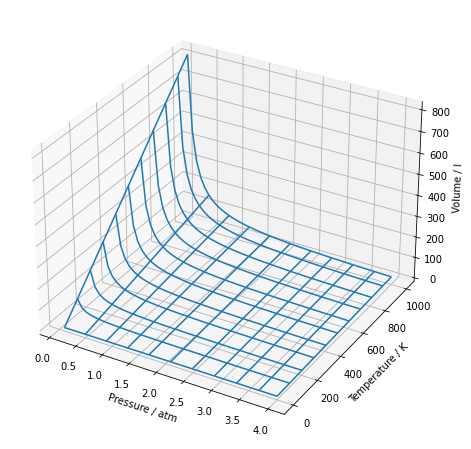
Can you recognize the isotherms and the isobars in the plot?
Finally, we can also create surfaces:
fig = plt.figure(figsize=(12, 8), facecolor=(1, 1, 1))
ax = fig.add_subplot(111, projection='3d')

ax.plot_surface(*data)
ax.set_xlabel('Pressure / atm')
ax.set_ylabel('Temperature / K')
ax.set_zlabel('Volume / l')

plt.show()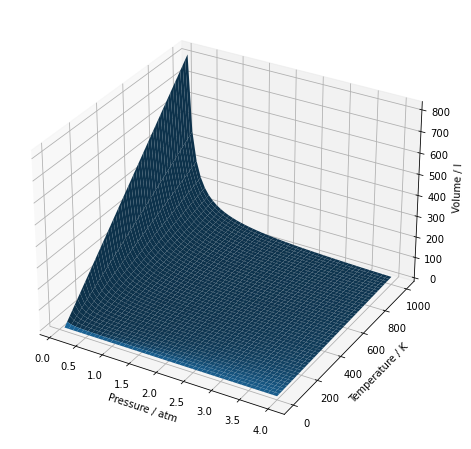
And color it with any colormap available in Matplotlib:
fig = plt.figure(figsize=(12, 8), facecolor=(1, 1, 1))
ax = fig.add_subplot(111, projection='3d')

ax.plot_surface(*data, cmap='rainbow')
ax.set_xlabel('Pressure / atm')
ax.set_ylabel('Temperature / K')
ax.set_zlabel('Volume / l')

plt.show()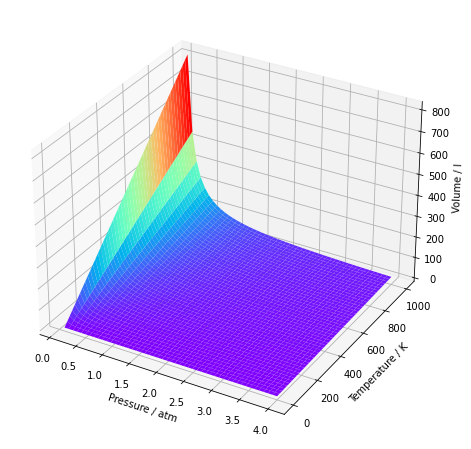
And, since we’re here, let’s make this plot spin. Why? Because I can, the plot is mine and I do what I want ;-)
%matplotlib notebook
fig = plt.figure(figsize=(6, 4), facecolor=(1, 1, 1))
ax = fig.add_subplot(111, projection='3d')

ax.plot_surface(*data, cmap='rainbow')
ax.set_xlabel('Pressure / atm')
ax.set_ylabel('Temperature / K')
ax.set_zlabel('Volume / l')

def animate(angle):
    ax = plt.gca()  # gca = get current axis
    ax.view_init(30, angle)

anim = animation.FuncAnimation(fig,
                               animate,
                               frames=361,  # 360° rotation
                               interval=1,
                               repeat=False)

plt.show()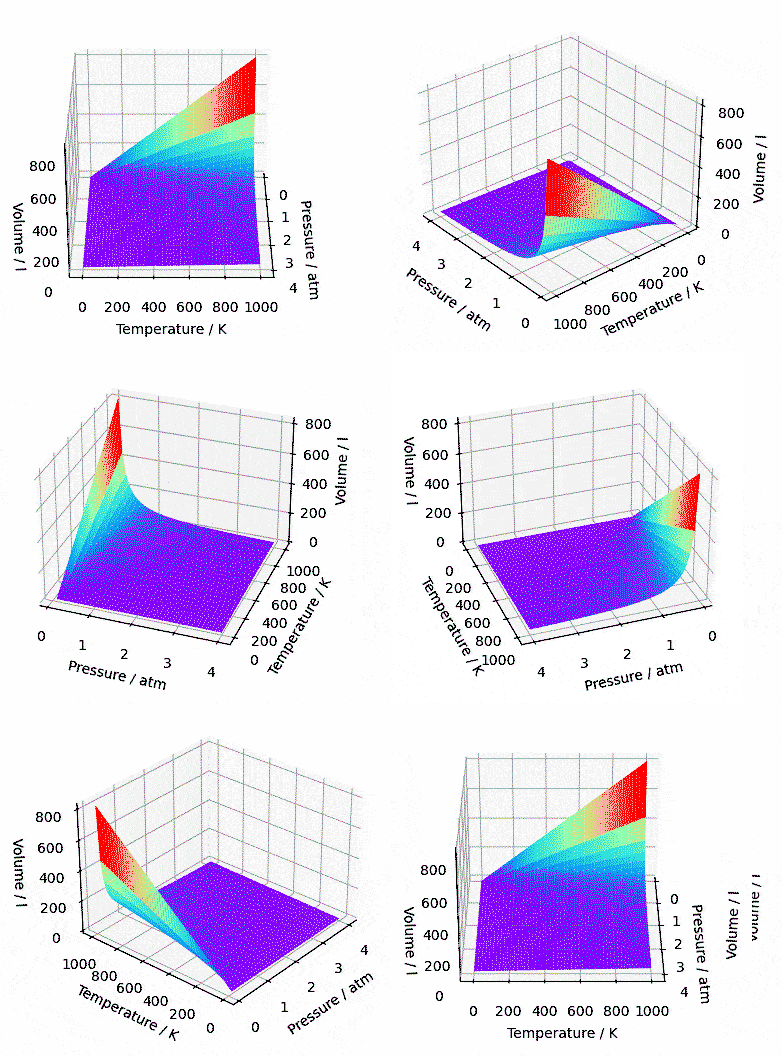
Conclusion #
Two of my favorite libraries in a single article. Even though this article is part of the series on SymPy, much was discussed about how Matplotlib builds plots. This knowledge is fundamental to get the most out of everything that is possible in terms of plots. We also saw how SymPy behaves when it interacts with other libraries, and how SymPy’s internal instructions are not always passed on to other libraries.
See you next time.


